Getting Started with Ranksy
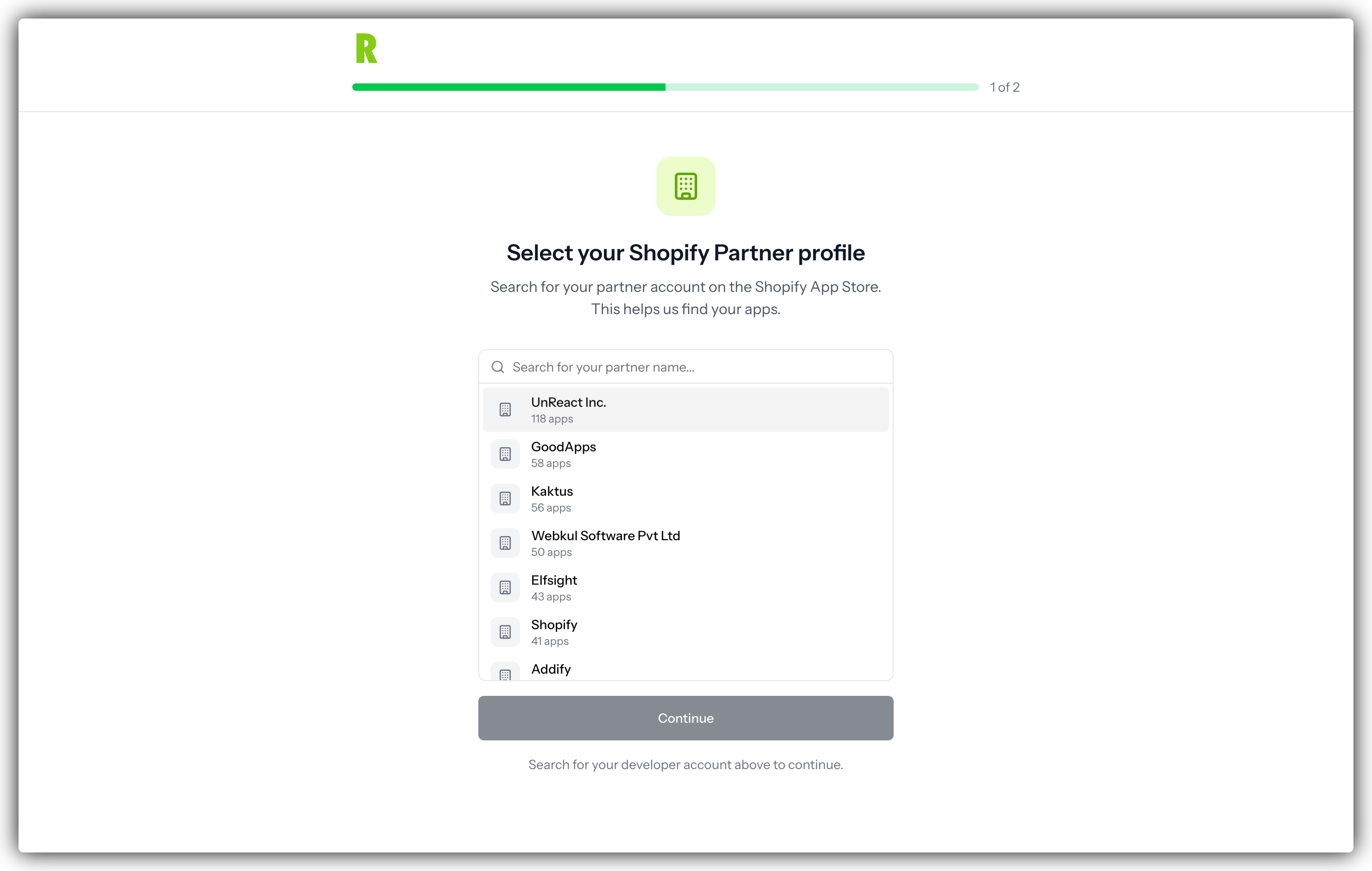
Welcome to Ranksy! This guide will help you set up your account and start tracking your Shopify app's performance in just a few minutes.
What is Ranksy?
Ranksy is your all-in-one analytics platform for Shopify app developers. Think of it as your app's command center where you can:
- Track Performance: See how your app ranks in categories and for keywords
- Understand Revenue: Know exactly which channels drive paying customers
- Research Competition: Monitor what successful apps are doing
- Manage Customers: View and analyze all your app users in one place
- Make Better Decisions: Use real data instead of guessing
Whether you're a solo developer with one app or an agency managing multiple clients, Ranksy gives you the insights you need to grow.
Step 1: Create Your Account
Sign Up with Google (Recommended - 30 seconds)
The fastest way to get started:
- Go to ranksyapp.com/register
- Click the "Sign up with Google" button
- Choose your Google account
- Click "Allow" to grant permissions
- You're in! 🎉
Why Google? It's faster, more secure, and you don't need to remember another password.
Sign Up with Email (2 minutes)
Prefer email and password?
- Go to ranksyapp.com/register
- Enter your email address
- Create a strong password (at least 8 characters)
- Click "Create Account"
- Check your email inbox
- Click the verification link in the email
- Your account is now active!
💡 Pro Tip: Check your spam folder if you don't see the verification email within 5 minutes.
Step 2: Add Your App (1 minute)
Now let's add your Shopify app to Ranksy:
Finding Your App
- After logging in, use the search bar at the top
- Type your app's name
- Click on your app from the search results
Can't find your app?
- Make sure it's published on the Shopify App Store
- Try searching for part of the name
- Check the spelling
Adding to My Apps
- On your app's profile page, click "Add to My Apps"
- The button instantly changes to "Remove from My Apps"
That's it! Your app is now in your portfolio and ready for analytics.
Step 3: Connect Your Data Sources
This is the most important step! Connecting your data sources unlocks all of Ranksy's powerful analytics.
Why Connect Data?
Without data connections, you can only see basic public information. With connections, you get:
- Revenue and MRR tracking
- Customer lifecycle analysis
- Traffic and conversion data
- Complete attribution tracking
Think of it like connecting your bank account to accounting software - you need the connection to see your real numbers.
Connection 1: Shopify Partner API (Revenue Data)
This connects your Shopify Partner account so Ranksy can track your app's revenue and customers.
What You'll Need:
- Your Shopify Partner Organization ID
- An API access key
- Your app's ID
Where to Find These:
- Log into your Shopify Partner Dashboard
- Go to Settings → Partner Account
- Note your Organization ID (looks like:
123456) - Go to Apps → Your app → Note the App ID from the URL
- Go back to Settings → API access → Create a new API key
In Ranksy:
- Click on your app in My Apps
- Go to Settings
- Find the "Shopify Partner API" section
- Enter your Organization ID, API Key, and App ID
- Click "Test Connection" to make sure it works
- Click "Save"
- Click "Run Historical Sync" to import past data
⏱️ How long? Initial sync takes 30 minutes to 2 hours depending on your data volume.
Connection 2: Google BigQuery (Traffic Data)
This connects your Google Analytics data so Ranksy can show you traffic, sessions, and user behavior.
Prerequisites:
- Google Analytics 4 (GA4) set up for your app
- GA4 connected to BigQuery (free tier works!)
- BigQuery data viewer permissions
In Ranksy:
- In your app Settings, find "Google BigQuery"
- Click "Connect Google Account"
- Choose your Google account
- Click "Allow" to grant permissions
- Select your Google Cloud Project (where GA4 exports data)
- Select your GA4 dataset (usually named
analytics_123456789) - Click "Test Import" to verify
- Click "Save" and "Start Import"
⏱️ How long? First import takes 1-4 hours for a year of historical data.
⚠️ Important: Set up both integrations right away! Every day you wait is a day of data you'll miss forever.
Step 4: Explore Your Dashboard (2 minutes)
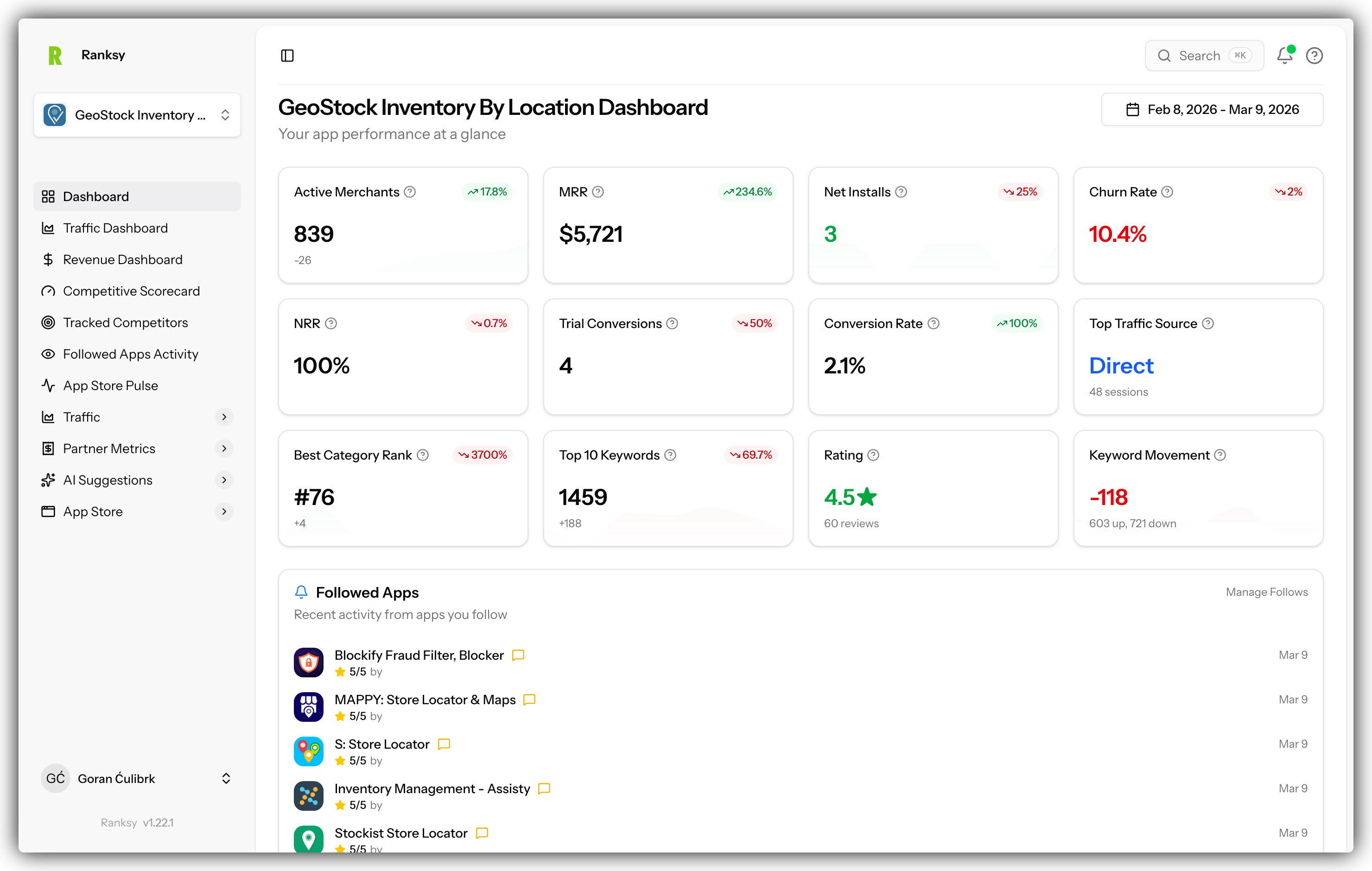
While your data is syncing, let's look around:
Your Analytics Dashboard
Click on your app in "My Apps" to see:
Key Metrics Cards showing:
- Pageviews (people viewing your app)
- Add App Clicks (people clicking to install)
- Installs (actual installations)
- Revenue trends (when Partner API is connected)
Daily Events Chart showing:
- Traffic patterns over time
- Spike when you launch features
- Trends you should pay attention to
Conversion Funnel showing:
- How many people see your app
- How many click to install
- How many actually install
- Where you're losing potential customers
Top Traffic Sources:
- Where your visitors come from
- Which channels convert best
- Where to focus marketing efforts
Other Important Sections
Category Analytics: See your ranking in each Shopify category Search Analytics: Track which keywords drive traffic Customer Management: View all your app users Partner Metrics: Deep dive into revenue and MRR
What to Do While Data Syncs
While your integrations are pulling historical data, here's what you can do:
1. Research Your Competition (10 minutes)
- Go to Apps in the main menu
- Filter by your app's category
- Sort by rating or reviews
- Click on top-performing apps
- Click "Follow" on 3-5 key competitors
Now you'll get updates when they:
- Release new features
- Move up or down in rankings
- Get new reviews
2. Explore the App Store (10 minutes)
Browse the Categories section to:
- See how many apps are in each category
- Check average ratings
- Identify underserved niches
- Find new opportunities
3. Research Keywords (10 minutes)
Go to Keywords to see:
- What people are searching for
- Which keywords have less competition
- Which terms drive the most traffic
- Where your app could rank
First Week Best Practices
Monday Morning Routine (5 minutes)
- Open Ranksy
- Check your Analytics Dashboard
- Look for unusual spikes or drops
- Review yesterday's key metrics
- Check your ranking positions
Mid-Week Check (10 minutes)
- Review traffic sources
- Check conversion rates
- Monitor customer growth
- See what competitors are doing
Friday Review (15 minutes)
- Look at week-over-week changes
- Analyze what worked (and what didn't)
- Plan next week's optimizations
- Set goals for the following week
Common Questions
Q: How soon will I see data? A: Basic app store data shows immediately. Partner API takes 30min-2hr. BigQuery takes 1-4hr for full historical import.
Q: Do I really need both integrations? A: For complete analytics, yes. Partner API = revenue data. BigQuery = traffic data. Together = full picture of your business.
Q: Can I add multiple apps? A: Absolutely! Add as many apps as you manage. Perfect for agencies and multi-app developers.
Q: Is my data secure? A: Yes. All data is encrypted in transit and at rest. We're GDPR compliant and never share your data.
Q: What if I need help? A: Use the chat widget (bottom right), email [email protected], or check docs.ranksyapp.com.
Q: Can I try before connecting my data? A: Yes! Add your app and explore public data first. You can connect integrations whenever you're ready.
Quick Troubleshooting
"I can't find my app"
- Make sure it's published on Shopify App Store
- Try searching by partial name
- Check if it's in the correct category
"Partner API connection failed"
- Double-check your Organization ID
- Make sure API key is copied correctly (no extra spaces)
- Verify the API key has proper permissions
- Try generating a new API key
"BigQuery import isn't working"
- Confirm GA4 is exporting to BigQuery
- Check you have "BigQuery Data Viewer" permissions
- Verify you selected the correct project and dataset
- Make sure billing is enabled on your Google Cloud project
"No data showing yet"
- Check integration status in Settings
- Look for error messages
- Wait for initial sync to complete
- Try clicking "Sync Now" to trigger manually
You're All Set! 🚀
You now have:
- ✅ Your account created
- ✅ Your app added
- ✅ Data sources connected (or in progress)
- ✅ Understanding of the dashboard
Next Steps:
- Bookmark your Analytics Dashboard
- Set up a daily 5-minute review routine
- Follow your top 3-5 competitors
- Explore all the features
- Make your first data-driven decision!
Welcome to smarter Shopify app development. Happy growing! 🌱
Need More Help?
- Browse Guides: Check out our detailed guides on each feature
- Video Tutorials: Watch step-by-step videos (coming soon)
- Contact Support: [email protected]
- Schedule Demo: Book a personal walkthrough
Remember: The best time to start tracking your data was yesterday. The second best time is right now.