Account Settings
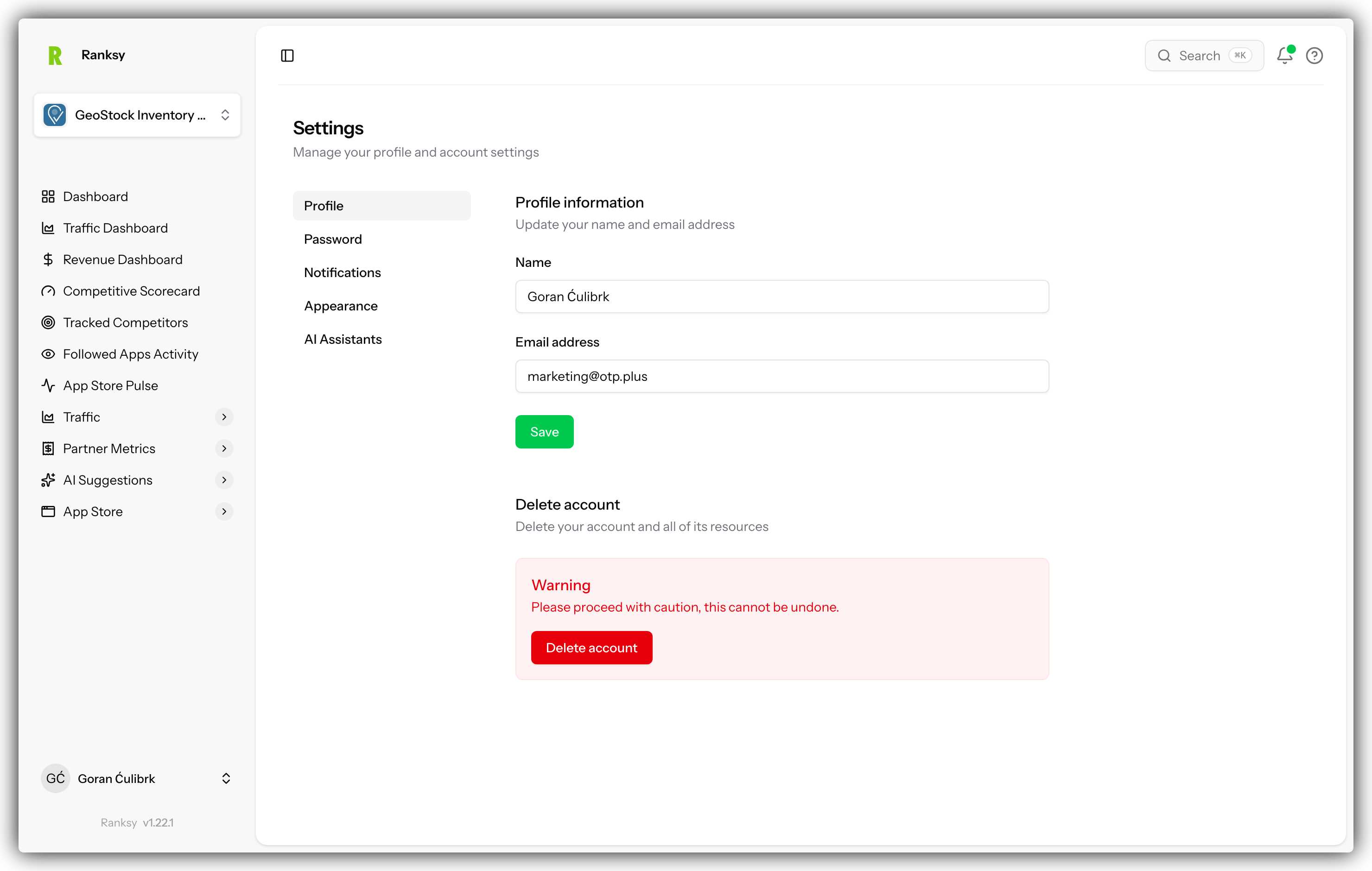
Account Settings lets you manage your personal profile, security, and display preferences in Ranksy.
Accessing Account Settings
- Click your profile icon in the top-right corner
- Select Settings from the dropdown
- The Settings page opens to your Profile
Or navigate directly to /settings/profile.
Settings Sections
Account Settings has three main sections:
| Section | What You Can Do |
|---|---|
| Profile | Update name and email |
| Password | Change or set your password |
| Appearance | Choose light, dark, or system theme |
Profile Settings
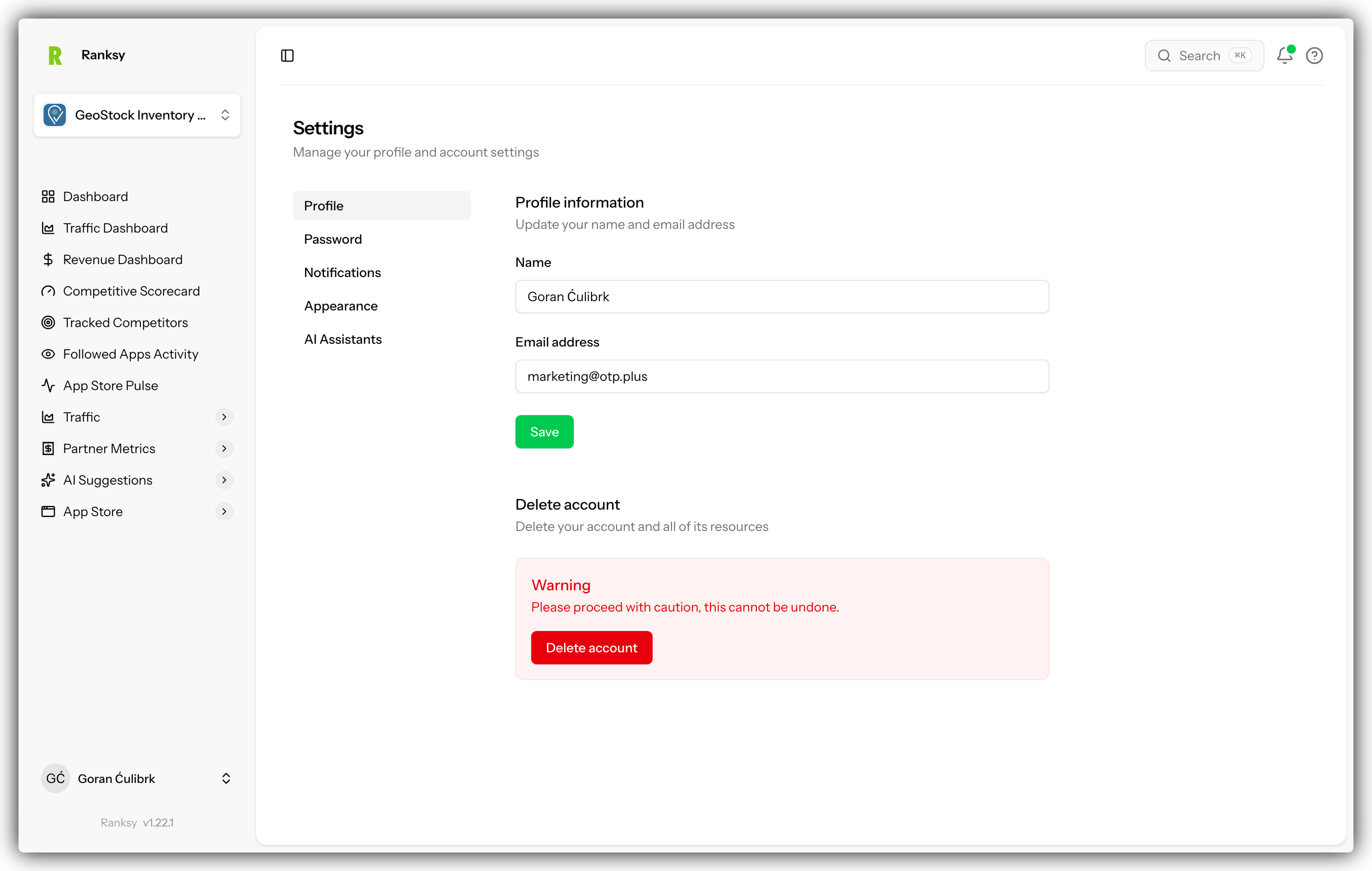
Update Your Name
- Go to Settings > Profile
- Edit the Name field
- Click Save
Your name appears in:
- Team member lists
- Activity logs
- Email notifications
Update Your Email
- Go to Settings > Profile
- Edit the Email address field
- Click Save
- If email verification is required, check your inbox
Important: Your email is used for:
- Logging in (if using email/password)
- Account notifications
- Password reset
- Team invitations
Email Verification
If your email is unverified:
- A notice appears on the Profile page
- Click "Click here to resend the verification email"
- Check your inbox for the verification link
- Click the link to verify
Password Settings
Change Your Password
If you already have a password set:
- Go to Settings > Password
- Enter your Current password
- Enter your New password
- Enter the new password again to Confirm
- Click Save password
Set a Password (Social Login Users)
If you signed up with Google and want to add password login:
- Go to Settings > Password
- Enter your desired Password
- Confirm the password
- Click Set password
Now you can log in with either Google or email/password.
Password Requirements
- Minimum 8 characters
- Mix of letters and numbers recommended
- Avoid common passwords
Appearance Settings
Theme Options
Choose how Ranksy looks:
| Theme | Description |
|---|---|
| Light | Bright background, dark text |
| Dark | Dark background, light text |
| System | Follows your device settings |
Changing Your Theme
- Go to Settings > Appearance
- Click on your preferred theme option
- The change applies immediately
The theme preference is saved to your account and applies across all devices.
Delete Account
What Happens When You Delete
At the bottom of the Profile page, you can delete your account:
- Click Delete account
- If you have a password, enter it to confirm
- Confirm the deletion
When deleted:
- Your account is permanently removed
- All personal data is deleted
- Team memberships are revoked
- If you're a team owner, you must transfer ownership first
Before Deleting
Consider:
- Export any data you need
- Transfer team ownership if applicable
- Disconnect integrations
- This action cannot be undone
Account Security
Best Practices
Strong Password:
- Use a unique password for Ranksy
- Consider a password manager
- Don't share your password
Email Security:
- Use a secure email address
- Keep your email up to date
- Verify your email promptly
Session Management:
- Log out on shared devices
- Use private/incognito for public computers
If You Suspect Unauthorized Access
- Change your password immediately
- Check your email for suspicious activity
- Review team member activity
- Contact support if needed
FAQ
Q: How do I change my email? A: Go to Settings > Profile, update the email field, and save. You may need to verify the new email.
Q: I forgot my password. What do I do? A: On the login page, click "Forgot password" and follow the reset instructions sent to your email.
Q: Can I use both Google and password login? A: Yes! If you signed up with Google, you can add a password in Settings > Password.
Q: Why isn't my new theme showing? A: Try refreshing the page. If using "System," check your device's theme settings.
Q: How do I export my data before deleting? A: Export data from individual analytics pages using the export buttons before deleting your account.
Q: Can I recover a deleted account? A: No. Account deletion is permanent. Create a new account if needed.
Q: How do I log out of all devices? A: This feature is coming soon. For now, change your password to invalidate other sessions.
Team settings? See Team Management to manage team members and roles.