How to Add an App to My Apps
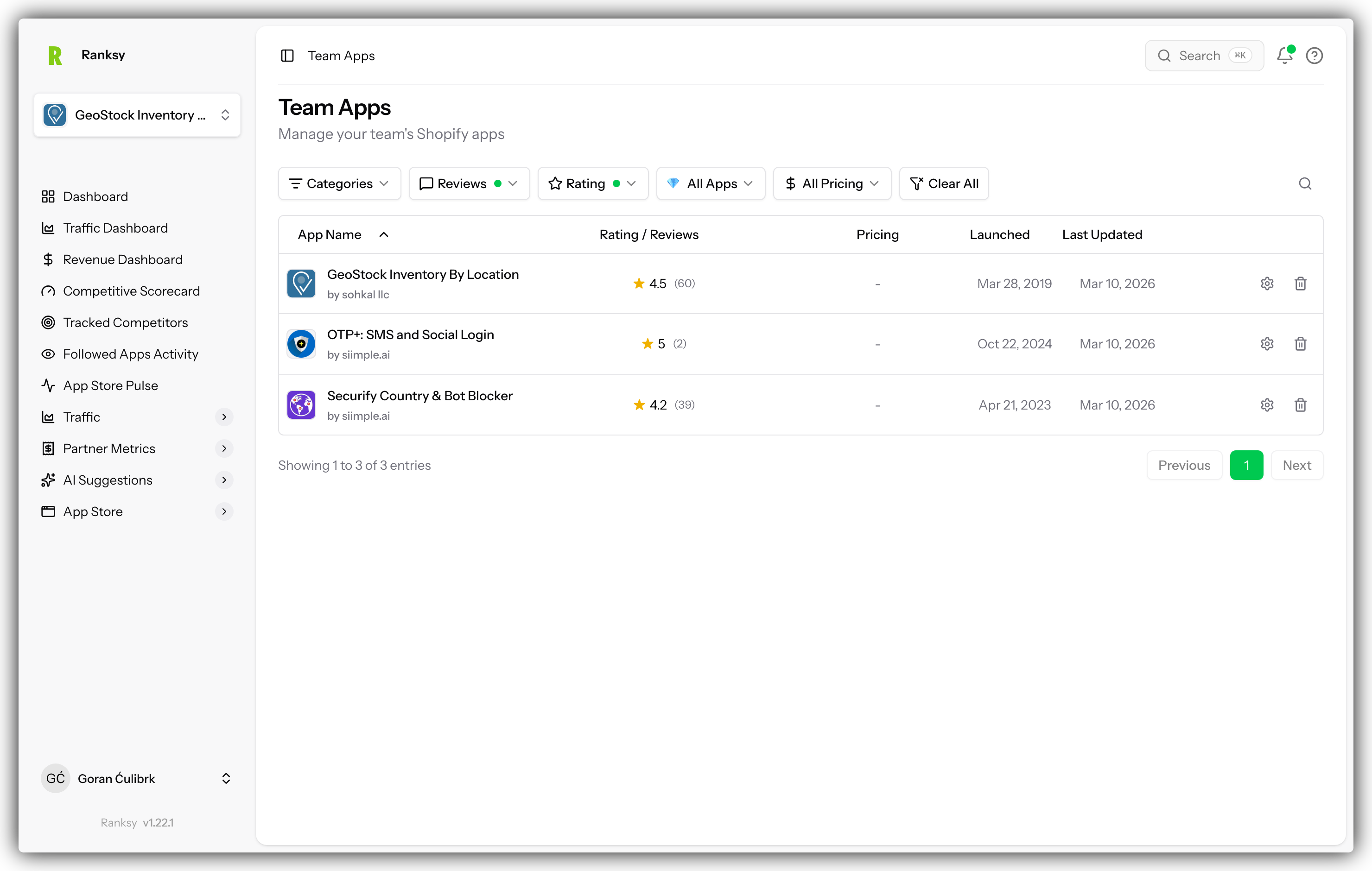
Learn how to add a Shopify app to your portfolio in Ranksy so you can track its performance and analytics.
What is "My Apps"?
"My Apps" is your personal portfolio of Shopify apps you want to track in Ranksy. When you add an app to My Apps, you unlock:
- Complete analytics dashboard
- Revenue and MRR tracking (when Partner API is connected)
- Traffic and conversion metrics
- Category and keyword ranking history
- Customer insights
- AI-powered suggestions
- Performance trends over time
How to Add an App
Method 1: Use Global Search (Fastest)
- Click the search bar at the top of any page
- Start typing your app's name
- Your app appears in the dropdown results
- Click on your app to open its profile
- Click the "Add to My Apps" button
Method 2: Browse the Apps Directory
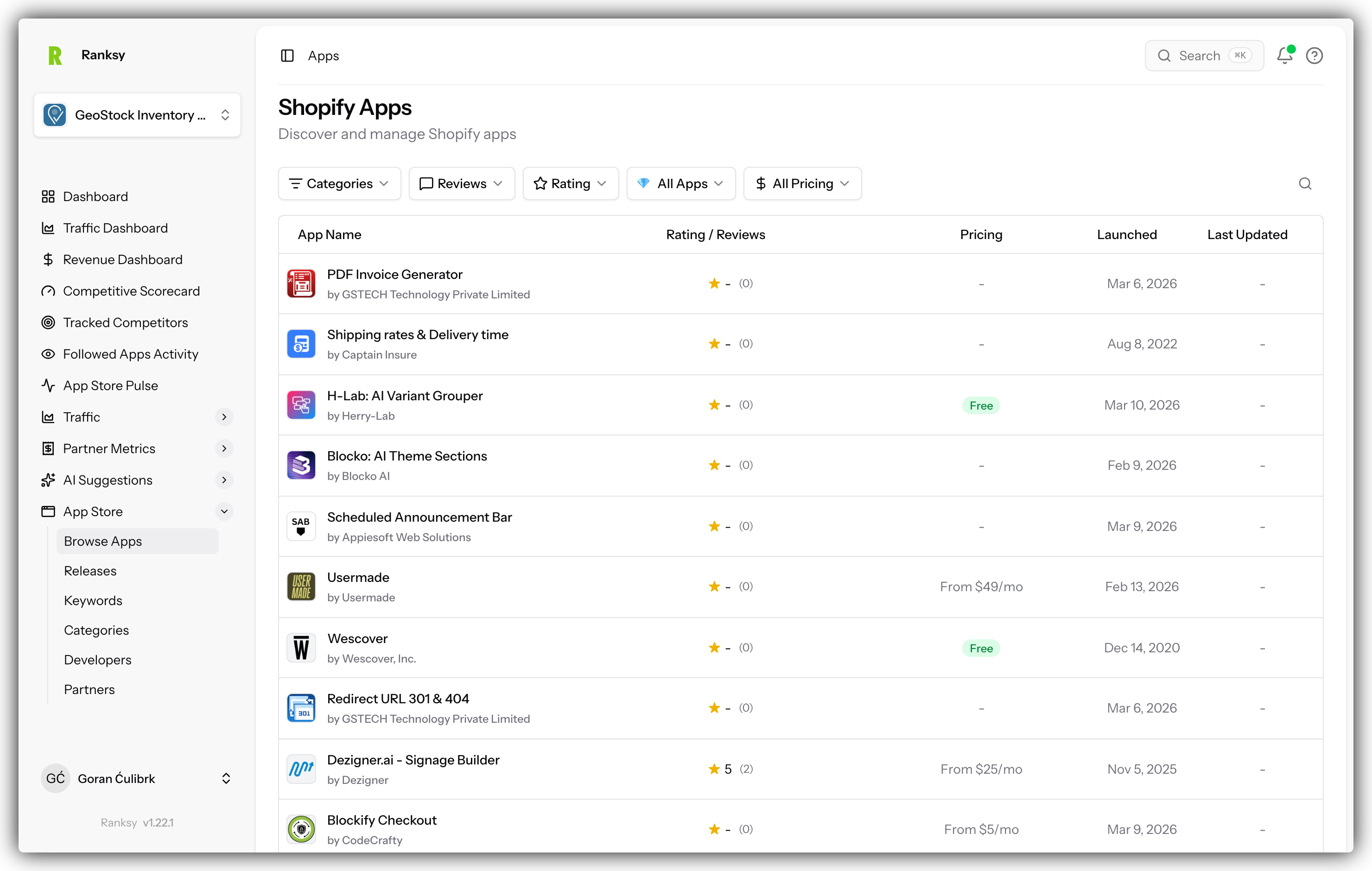
- Click "Apps" in the main navigation
- Use the search box to find your app by name
- Or filter by category, pricing, or rating
- Click on your app when you find it
- Click the "Add to My Apps" button
Method 3: From a Category or Keyword Page
- Navigate to any category or keyword page
- Find your app in the rankings list
- Click on your app to open its profile
- Click the "Add to My Apps" button
After Adding Your App
Once you click "Add to My Apps":
- The button immediately changes to "Remove from My Apps"
- Your app appears in the My Apps section in the sidebar
- You can immediately access the analytics dashboard
That's it - no confirmation needed. The app is added instantly.
What Data is Available Immediately
Without any integrations:
- Category rankings and history
- Keyword rankings and history
- Public reviews and ratings
- App store listing details
- Competitor comparisons
Unlocking Full Analytics
To see revenue, traffic, and customer data, you need to connect integrations:
- Go to your app's Settings page
- Connect Shopify Partner API for revenue and customer data
- Connect Google BigQuery for traffic and conversion data
See Connect Partner API and Connect BigQuery for detailed setup guides.
Viewing Your Apps
Access My Apps
Click "My Apps" in the sidebar to see your complete portfolio.
App Cards Show
Each app card displays:
- App name and icon
- Current category rank
- Rating and review count
- Quick status indicators
Open Analytics Dashboard
Click any app card to open its full analytics dashboard with:
- Performance metrics
- Ranking trends
- Traffic analysis (with BigQuery)
- Revenue data (with Partner API)
- AI suggestions
Managing Your Apps
Switch Between Apps
If you have multiple apps:
- Click the app selector in the sidebar
- Choose the app you want to view
- The dashboard updates immediately
Remove an App
If you no longer want to track an app:
- Go to the app's Settings page
- Scroll to the bottom
- Click "Remove from My Apps"
- Confirm the removal
Note: Removing an app disconnects integrations but your historical data is preserved for 90 days.
App Settings
Each app in My Apps has its own Settings page where you can:
Integration Settings
- Shopify Partner API: Connect to track revenue, MRR, and customers
- Google BigQuery: Connect to analyze traffic and conversions
Integration Status
For each integration, you can see:
- Connection status (Connected, Error, Inactive)
- Last sync timestamp
- Error messages if any issues
- Sync controls
Actions Available
- Test connection
- Trigger manual sync
- Update credentials
- Disconnect integration
See App Settings for detailed information about configuring your app.
Tips for Managing Multiple Apps
For Agencies
- Add all client apps to your portfolio
- Use the app selector to quickly switch between clients
- Each app has separate integration settings
- Team members can access all team apps
For Multi-App Developers
- Track all your apps in one place
- Compare performance across your portfolio
- Identify your best and worst performers
- Allocate resources based on data
Tracking Competitors
You can add competitor apps to My Apps:
- Public data (rankings, reviews) is fully available
- You won't have access to their private data
- Use for benchmarking and competitive analysis
Frequently Asked Questions
Q: How many apps can I add? A: This depends on your plan. Check your plan limits in Settings > Billing.
Q: Can I add apps I don't own? A: Yes! You can add any public Shopify app. You'll see public data like rankings and reviews. Private data (revenue, customers) requires integration credentials.
Q: What data can I see without integrations? A: Rankings, reviews, ratings, listing details, and competitive positioning. For revenue and traffic data, you need to connect integrations.
Q: Will the app developer know I'm tracking their app? A: No. Adding an app to My Apps is completely private.
Q: Can I export my app data? A: Yes, most analytics pages have export options for CSV download.
Q: What happens to my data if I remove an app? A: Data is preserved for 90 days. If you re-add the app, historical data is restored.
Next step: Configure your app's integration settings to unlock full analytics.