App Settings
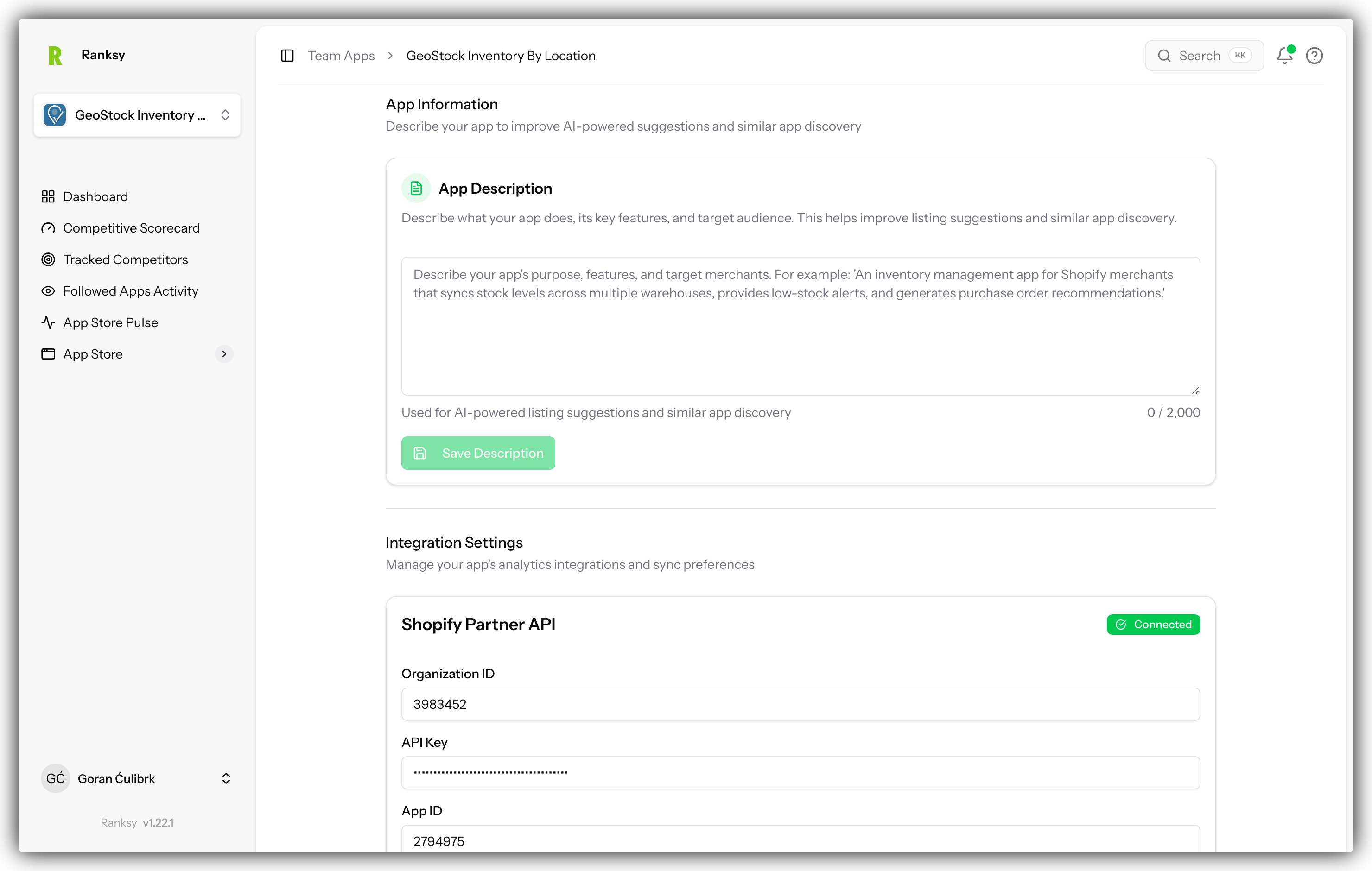
App Settings is where you configure integrations and manage your app's data connections. Each app in your portfolio has its own settings page.
Accessing App Settings
- Go to My Apps and select your app
- Click Settings in the sidebar navigation
- The Integration Settings page opens
Integration Settings
Overview
The settings page shows your integration status at a glance:
| Integration | What It Provides |
|---|---|
| Shopify Partner API | Revenue, MRR, customers, subscriptions |
| Google BigQuery | Traffic, sessions, conversions, attribution |
Integration Status Indicators
Each integration shows its current status:
- Connected (Green): Working correctly, syncing data
- Error (Red): Connection issue, needs attention
- Inactive (Gray): Not yet configured
- Connecting (Yellow): Setup in progress
- Pending (Yellow): Waiting for initial sync
Shopify Partner API Integration
What You Get
When connected, you'll see:
- Daily, weekly, monthly revenue
- MRR (Monthly Recurring Revenue)
- Customer counts and details
- Subscription changes (upgrades, downgrades, churn)
- Transaction history
- Customer lifecycle data
Connection Requirements
You'll need from your Shopify Partner Dashboard:
- Organization ID: Your partner account identifier
- API Access Key: Generated API credentials
- App ID: Your specific app's identifier
How to Connect
- Click Configure in the Shopify Partner API section
- Enter your Organization ID
- Enter your API Access Key
- Enter your App ID
- Click Test Connection
- If successful, click Save
- Click Run Historical Sync to import past data
Connection Status
After connecting, you'll see:
- Status: Connected, Error, or other state
- Last Sync: When data was last updated
- Error Message: If there's a problem, details are shown
Manual Sync
To refresh data immediately:
- Click the Sync Now button
- Wait for sync to complete (usually 1-5 minutes)
- Dashboard data updates
Troubleshooting
"Invalid credentials" error:
- Double-check your Organization ID
- Verify API key is copied correctly
- Ensure no extra spaces in any field
"App not found" error:
- Confirm App ID is correct
- Verify app is in your Partner account
Data not updating:
- Check last sync timestamp
- Try manual sync
- Verify credentials are still valid
Google BigQuery Integration
What You Get
When connected, you'll see:
- Pageviews and sessions
- Traffic sources (Google, Direct, Referral, etc.)
- Geographic data (countries, regions)
- Device breakdown (desktop, mobile, tablet)
- Conversion funnel (views → clicks → installs)
- Attribution data
Connection Requirements
Before connecting, ensure you have:
- Google Analytics 4 (GA4) tracking your app
- GA4 exporting data to BigQuery
- Access to the Google Cloud project with BigQuery data
How to Connect
- Click Configure in the BigQuery section
- Click Connect Google Account
- Sign in with your Google account
- Grant read-only permissions
- Select your Google Cloud Project
- Select your GA4 dataset (usually
analytics_XXXXXXXXX) - Click Test Import
- If successful, click Save
- Click Start Historical Import
Connection Status
After connecting, you'll see:
- Status: Connected, Error, or other state
- Last Query: When data was last imported
- Project ID: Your Google Cloud project
- Dataset ID: Your GA4 dataset
Troubleshooting
"No datasets found" error:
- Verify GA4 is exporting to BigQuery
- Check you selected the correct project
- Wait 24-48 hours after enabling GA4 export
"Permission denied" error:
- Ensure you have BigQuery Data Viewer role
- Try disconnecting and reconnecting
- Check Google Cloud IAM permissions
No data appearing:
- Verify GA4 tracking is working
- Check date range in analytics
- Wait for daily export to complete
Data Sync Behavior
Automatic Syncing
Ranksy automatically syncs your data:
| Integration | Frequency |
|---|---|
| Partner API | Daily (overnight) |
| BigQuery | Daily (morning) |
Manual Syncing
You can trigger a manual sync anytime:
- Go to Settings
- Click Sync Now for the integration
- Wait for completion
Manual syncs are useful when:
- You need the latest data immediately
- You suspect sync issues
- After making changes in Shopify
Remove App
What Happens When You Remove
At the bottom of Settings, you can remove the app from My Apps:
- Click Remove from My Apps
- Confirm the removal
When removed:
- App disappears from your My Apps list
- Integrations are disconnected
- Historical data is preserved for 90 days
- You can re-add the app later
Re-adding an App
If you remove and re-add an app within 90 days:
- Historical data is restored
- You'll need to reconnect integrations
- Rankings history is preserved
Best Practices
Integration Setup
- Connect both integrations for complete data
- Run historical imports after connecting
- Verify data appears in dashboards
- Set up a routine to check sync status
Maintaining Connections
- Check settings weekly for any errors
- Re-authorize if you change Google passwords
- Update API keys if you rotate credentials
- Monitor last sync timestamps
Data Quality
- Wait 24-48 hours after connecting for full data
- Compare Ranksy data with source dashboards
- Use manual sync if data seems stale
- Contact support for persistent issues
FAQ
Q: How often does data sync automatically? A: Partner API syncs daily overnight. BigQuery imports daily each morning.
Q: Can I connect multiple apps to the same Partner account? A: Yes, each app uses its own App ID but can share Organization ID and API key.
Q: Will syncing affect my Shopify or Google billing? A: Partner API is free. BigQuery has a generous free tier (1 TB/month queries).
Q: What if my integration shows an error? A: Check the error message, verify credentials, and try reconnecting. Contact support if issues persist.
Q: Can I pause syncing temporarily? A: Currently, you can disconnect and reconnect. Pausing is not yet supported.
Q: How do I update my API credentials? A: Go to Settings, update the fields, and click Save. Then test the connection.
Need help with integrations? See Connect Partner API and Connect BigQuery for detailed setup guides.