Category Analytics
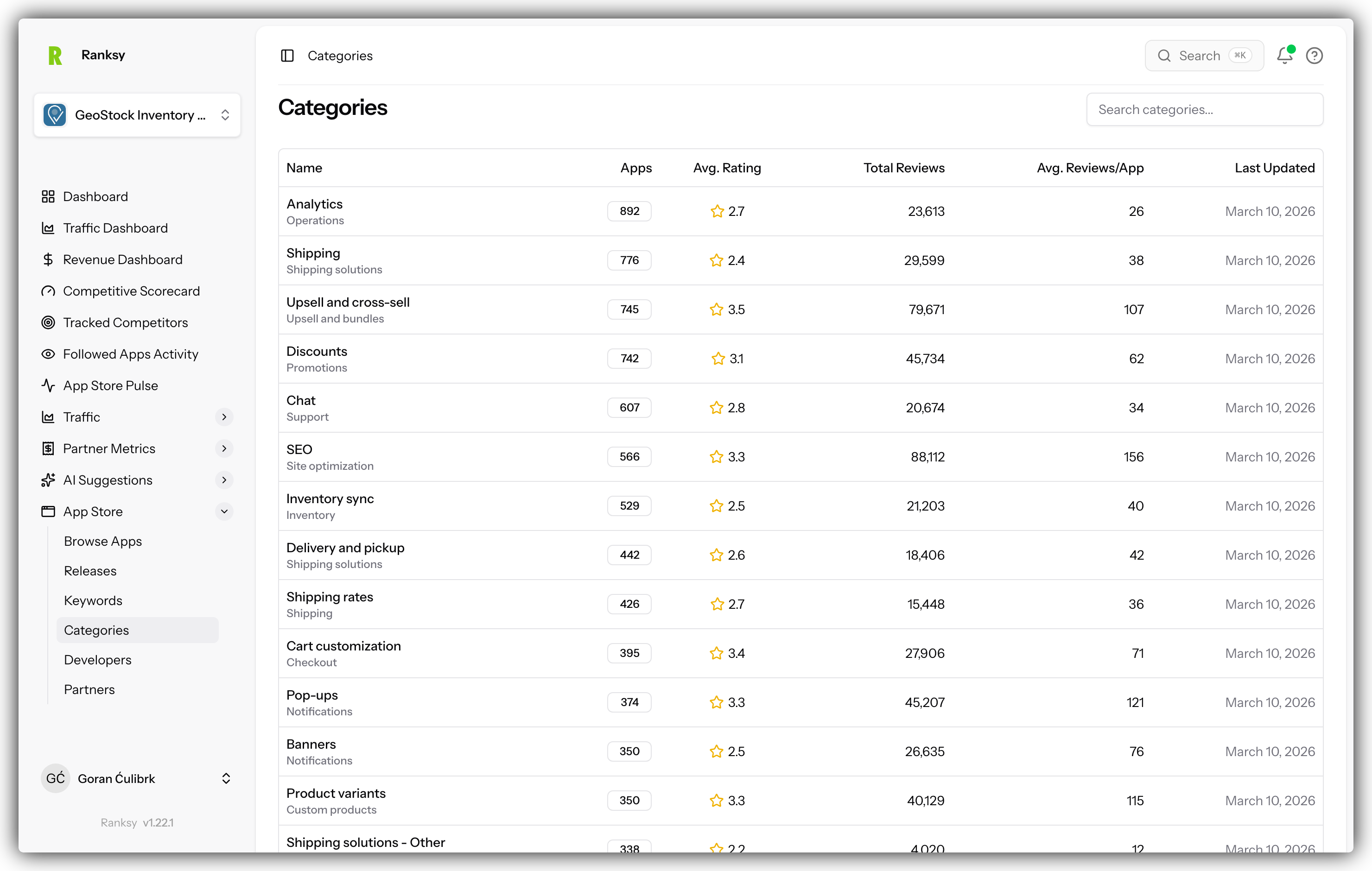
Category Analytics shows how your app performs in each category listing, helping you optimize rankings and maximize category-driven installs.
Accessing Category Analytics
- Go to My Apps and select your app
- Click Category in the sidebar navigation
- Your category performance data will load
Category Selector
At the top, choose which category to analyze:
- All Categories: Aggregated view across all categories
- Specific Category: Deep dive into one category
The dropdown shows all categories where your app is listed.
Performance Metrics Cards
Average Rank
- Mean position across selected date range
- Trend indicator showing improvement or decline
- Color-coded: green = improving, red = declining
Best Rank
- Highest position ever achieved
- Date when you hit this peak
- Your target to maintain or beat
Worst Rank
- Lowest position recorded
- Helps you understand your floor
- Set improvement goals above this
Rank Volatility
- Statistical measure of ranking stability
- Low volatility = stable, consistent position
- High volatility = frequent changes, unstable
Tip: Aim for low volatility with high average rank. High volatility means you need to stabilize your position.
Category Event Timeline
Daily Traffic Chart
Multi-line chart showing:
- Pageviews: Traffic from category pages (blue)
- Add App Clicks: CTA clicks (green)
- Installs: Conversions from category (purple)
Chart Features
- Interactive hover for exact numbers
- Date range filtering
- Category-specific or aggregated view
- Visual trend lines
What to Look For
- Correlate traffic spikes with ranking changes
- Identify your best-performing categories
- Spot seasonal patterns
- Plan category-specific optimizations
Conversion Funnel
Multi-Stage Funnel
Visualize your complete journey:
- Category Pageviews - Visitors from category page
- Add App Clicks - Button clicks
- App Installs - Installations
- Trial Starts - From Partner API (if connected)
- Paid Customers - Revenue conversions
Metrics Shown
- Volume at each stage
- Conversion rates between stages
- Visual proportional sizing
- Attribution notes
Optimization Use
- Identify where users drop off
- Compare funnel across categories
- Calculate revenue attribution per category
- Prioritize high-converting categories
Note: Trial and paid customer data requires Partner API connection.
Ranking Trends Chart
Historical Rankings
Line chart showing:
- Rank position over time (inverted scale)
- App update markers overlaid
- Comparison across multiple categories
Insights Generated
- Biggest Improvements: Auto-detected wins
- Concerning Drops: Alerts for declines
- Update Correlation: Impact of app updates
- Trend Direction: Improving, declining, or stable
Category Sessions Table
Detailed Breakdown
For each category:
| Column | Description |
|---|---|
| Category | Category name |
| Current Rank | Today's position |
| Sessions | Total visits from category |
| Pageviews | Page loads |
| Clicks | Add app button clicks |
| Installs | Conversions |
| Conversion Rate | Install % |
Expandable Details
Click any row to see:
Geographic Breakdown
- Top countries per category
- Sessions, clicks, conversions by country
Device Breakdown
- Desktop vs Mobile vs Tablet
- Performance by device type
Source Breakdown
- Traffic sources per category
- Organic vs paid vs direct
Daily Trends
- Sparkline charts
- Day-of-week patterns
Growth Opportunities
AI-Powered Recommendations
For each category, see:
- Current rank and opportunity description
- Potential rank improvement estimate
- Competitor gap analysis
- Specific actionable recommendations
Prioritization
Opportunities are sorted by:
- Potential impact
- Quick wins highlighted
- Long-term strategies noted
Pro Tip: Focus on categories where you rank 11-20. Small improvements here mean big visibility gains.
Understanding Ranking Changes
What Affects Category Rankings
- App Quality: Rating and reviews
- Update Frequency: How recently you updated
- Conversion Performance: Install rates
- User Engagement: Activity signals
- Category Relevance: How well you fit
Common Patterns
Post-Update Jump
- Updates often improve rankings
- Effect visible within 24-48 hours
- Sustained if quality is maintained
Gradual Decline
- Lack of updates
- Competitor improvements
- Review quality dropping
Volatility
- New in category (establishing position)
- High competition
- Algorithm adjustments
Best Practices
Weekly Review
- Check ranking changes across all categories
- Identify significant movements
- Correlate with app updates
- Note competitor activities
Monthly Strategy
- Review 30-day category trends
- Identify growth opportunities
- Plan category-specific optimizations
- Set ranking goals
After App Updates
- Monitor ranking changes closely (48-72 hours)
- Track conversion rate impacts
- Measure traffic changes
- Document what worked
Comparing Categories
Portfolio View
When viewing "All Categories":
- See all categories side by side
- Compare rankings and performance
- Identify your strongest categories
- Find improvement opportunities
Strategic Questions
- Which category drives the most installs?
- Where do you have the best conversion rate?
- Which categories are underperforming?
- Where should you focus optimization?
FAQ
Q: How often are category rankings updated? A: Daily, typically overnight.
Q: My app is in a new category but I don't see it yet? A: New categories appear within 24-48 hours of Shopify adding your app.
Q: Why do rankings fluctuate so much? A: Competition, algorithm updates, and your own activity all affect rankings. Some volatility is normal.
Q: Can I see competitor rankings in my categories? A: Yes, follow competitors and use the Competitive Intelligence feature.
Q: What's a good category rank to aim for? A: Top 10 gets most visibility. Top 50 still appears in category browsing.
Want to improve your category rankings? Check out AI Listing Improvements for specific recommendations.