How to Check Category Rankings
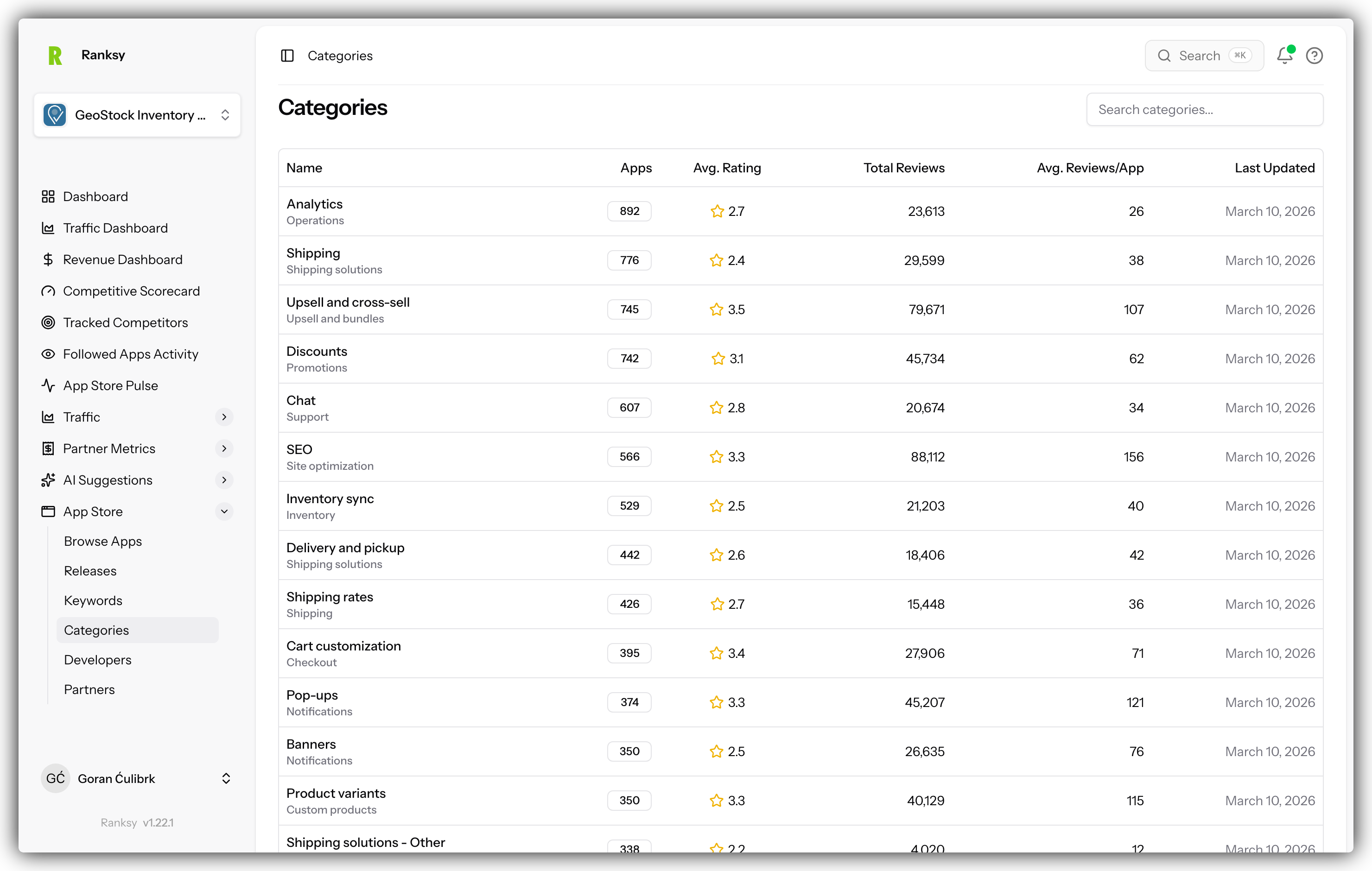
Learn how to track your app's position in Shopify App Store categories and monitor ranking changes over time.
What Are Category Rankings?
Shopify organizes apps into categories like "Marketing", "Sales", "Shipping", etc. Your app's rank in each category affects:
- Visibility: Higher ranks = more exposure
- Trust: Top rankings signal quality
- Traffic: Better positions drive more clicks
- Installs: Ranking directly impacts conversions
Accessing Category Analytics
For Your Apps
- Go to My Apps
- Click on your app
- Click "Category Analytics" in the app navigation
For Any App (Public Data)
- Go to Apps or use search
- Click on any app
- View its category rankings on the profile
The Category Analytics Page
Top Filters
Date Range: Choose period (7d, 30d, 90d, custom) Category: View all categories or select one
Both filters update the page data instantly.
Performance Cards
One card per category showing:
Average Rank: Your typical position Best Rank: Your highest position achieved Worst Rank: Your lowest position Volatility: How much your rank fluctuates
Lower numbers are better!
- Rank #1 = Top position
- Rank #50 = Needs improvement
Ranking Trends Chart
Line chart showing rank over time:
- Y-axis: Rank (lower is better, chart inverted)
- X-axis: Date
- Hover: See exact rank on specific date
- Multiple lines: One per category
What to look for:
- Upward trends (moving up in rank)
- Drops (lost positions - investigate why)
- Stability (consistent performance)
Category Sessions Table
For each category:
Columns:
- Category Name: Which category
- Current Rank: Your position today
- Rank Change: vs previous period
- Sessions: Traffic from this category
- Pageviews: Views from category traffic
- Add to Cart: Clicks from this category
- Installs: Conversions
Sort by any column to identify:
- Best performing categories
- Most traffic
- Highest conversion categories
Conversion Funnel
Shows the complete path:
Pageviews → App Button Clicks → Installs → Trials → Paid Customers
Trials and Paid Customers only show if Partner API is connected.
Helps you understand where users drop off.
Understanding Rank Changes
Rank Change Indicators
Next to current rank, you'll see:
- ↑ +5 (Green): Moved up 5 positions
- ↓ -3 (Red): Dropped 3 positions
- — (Gray): No change
What Causes Rank Changes?
Positive changes (moving up):
- New positive reviews
- Increased installs
- Regular updates
- Improved conversion rate
- Competitor apps declining
Negative changes (dropping):
- New competitors entering
- Negative reviews
- Decreased installs
- No recent updates
- Competitor apps improving
Tips for Improving Rankings
Focus on High-Traffic Categories
- Check "Sessions" column
- Identify categories with most traffic
- Optimize for those first
Monitor Competitor Rankings
- Follow competitor apps
- Check their category rankings
- Understand what they're doing right
Track Seasonal Patterns
- Use 90-day view
- Look for seasonal trends
- Plan launches around patterns
Optimize for One Category at a Time
- Pick your most important category
- Focus all efforts there
- Move to next category once improved
Filtering by Category
View All Categories
Select "All Categories" to see:
- Performance across all categories
- Which categories perform best
- Overall ranking trends
View Single Category
Select a specific category to see:
- Detailed ranking history
- Category-specific traffic
- Conversion metrics
- Competitor analysis (if available)
Category-Specific Insights
Best Categories
Identify winners:
- High sessions
- Low rank (top positions)
- Good conversion rate
Opportunity Categories
Find potential:
- Medium rank (#15-30)
- Decent traffic
- Room for improvement
Underperforming Categories
Decide to improve or ignore:
- Low rank (#50+)
- Low traffic
- Poor conversion
Common Questions
Q: How often do rankings update? A: Shopify updates rankings daily. Ranksy syncs overnight.
Q: Can I track categories I'm not in? A: Your app only appears in categories Shopify assigns. You can't manually add categories.
Q: What's a good rank? A: Top 10 is excellent, Top 25 is good, Top 50 is acceptable, Below 50 needs work.
Q: Why did my rank drop suddenly? A: Check for new competitors, negative reviews, decreased installs, or Shopify algorithm changes.
Q: Do rankings affect revenue? A: Yes! Higher rankings → more visibility → more installs → more revenue.
Q: Can I see competitor ranks? A: Yes, view any app's profile to see their category rankings.
Next Steps
Related analytics features:
- Check Keyword Rankings - See how you rank for search terms
- View Analytics Dashboard - Overall performance metrics
- Track Traffic Sources - Where category traffic comes from
- Follow Competitors - Monitor competitor categories
Need help? Contact [email protected] or use the chat widget.