How to Filter and Search Apps
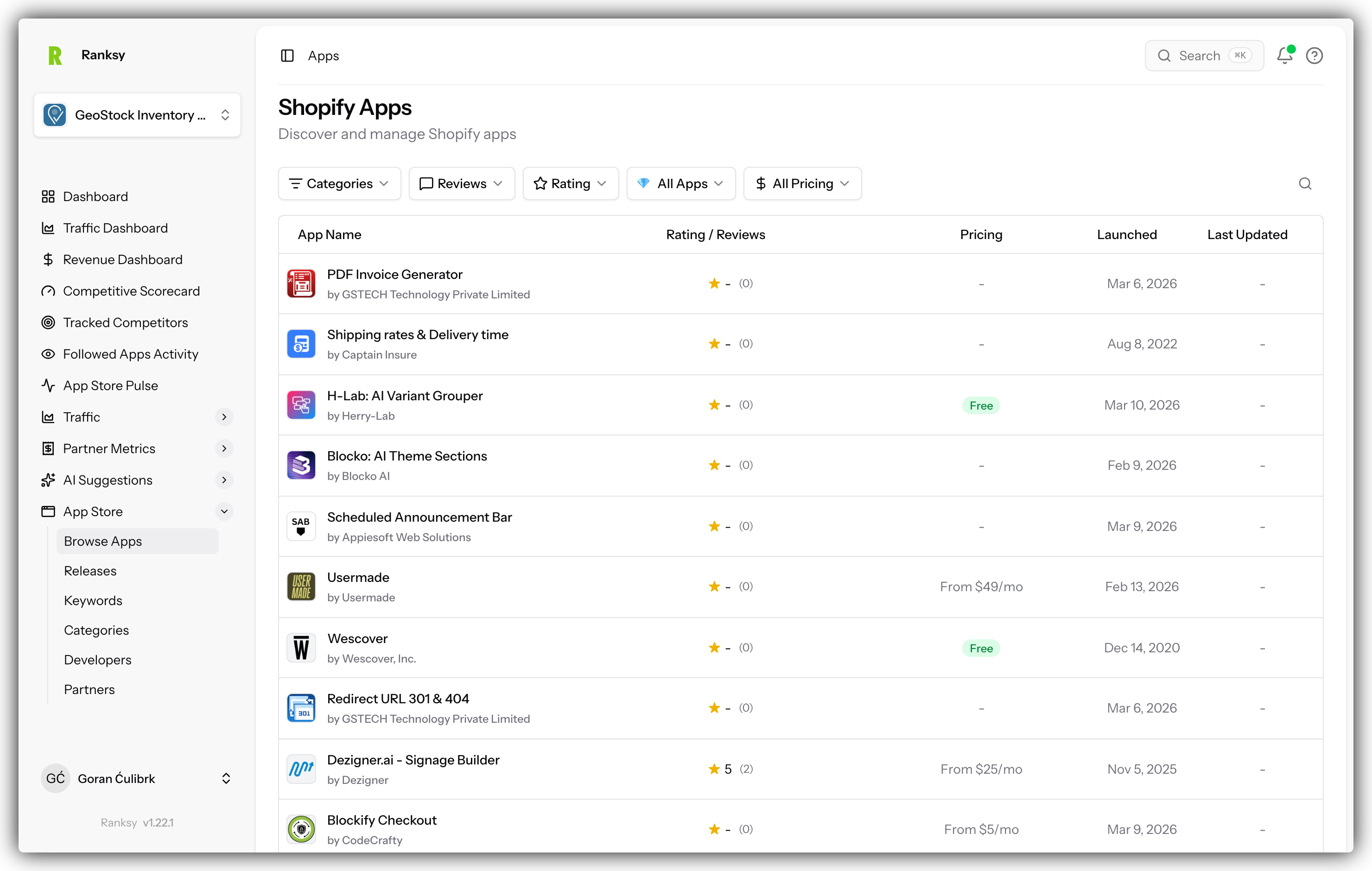
Learn how to find Shopify apps quickly using search and filters in Ranksy.
Where You Can Search and Filter
Search and filters are available on:
- Apps page - Browse all Shopify apps
- My Apps page - Filter your portfolio
- Followed Apps page - Search apps you're tracking
- Keywords page - Find keywords
- Categories page - Browse categories
Searching for Apps
Quick Search
Every page with apps has a search bar in the top right:
- Click the search box
- Type app name, developer name, or keyword
- Results update automatically as you type (400ms delay)
- Click on any app to view details
Search Tips
- Partial names work: "down" finds "DownPay", "Countdown Timer", etc.
- Developer names: Search by company name to find all their apps
- Case insensitive: "DOWNPAY" and "downpay" return same results
- Clear search: Click the × button to clear
Using Filters
Opening Filters
- Look for the Filters button (usually next to search)
- Click to open the filters panel
- A sidebar or modal appears with all filter options
Available Filters
Category Filter
- Select one or multiple categories
- Shows only apps in selected categories
- Useful for niche research
Rating Filter
- Set minimum rating (e.g., 4.0+)
- Set maximum rating
- Or both for a range (e.g., 4.0 - 5.0)
- Find quality apps or identify struggling apps
Reviews Filter
- Set minimum review count
- Set maximum review count
- Or both for a range
- Find established apps vs new apps
Built for Shopify
- Toggle ON to show only "Built for Shopify" apps
- These apps meet Shopify's highest quality standards
- Toggle OFF to see all apps
Applying Filters
Option A: Auto-Apply (Most pages)
- Filters apply automatically as you change them
- 400ms delay after you stop typing
- Page updates without clicking anything
Option B: Manual Apply (Some pages)
- Set all your filters
- Click "Apply Filters"
- Results update
Clearing Filters
To remove all filters:
- Click "Clear Filters" button
- All filters reset to defaults
- Full app list returns
Or clear individual filters:
- Remove category selections
- Clear rating/review inputs
- Toggle off Built for Shopify
- Changes apply automatically
Sorting Results
Sort Options
Click column headers to sort by:
- Name (A-Z or Z-A)
- Rating (Highest or Lowest)
- Review Count (Most or Least)
- Last Updated (Newest or Oldest)
- Launched Date (Newest or Oldest)
How Sorting Works
- Click a column header once: Sort ascending (A-Z, 0-9, oldest-newest)
- Click same header again: Sort descending (Z-A, 9-0, newest-oldest)
- Click a third time: Remove sort (back to default)
Current sort shows an arrow indicator (↑ or ↓) in the column header.
Combining Search, Filters, and Sort
You can use all three together for powerful searches:
Example 1: Find Quality Email Marketing Apps
- Search: Type "email" or "marketing"
- Filter by Category: Select "Marketing"
- Filter by Rating: Set minimum 4.5
- Filter by Reviews: Set minimum 100
- Sort by: Rating (highest first)
Result: Top-rated, proven email marketing apps
Example 2: Find New Competitors
- Filter by Category: Select your category
- Filter by Launched: Recent only (sort by launch date)
- Filter by Rating: 4.0+ (quality threshold)
- Filter by Reviews: Max 50 (new but getting traction)
Result: Emerging competitors in your space
Example 3: Research Market Leaders
- Filter by Category: Your main category
- Filter by Reviews: Min 500+ (established)
- Sort by: Review count (most first)
- Toggle: Built for Shopify ON
Result: Category leaders with proven quality
Pagination
When results exceed one page:
- Navigation: Previous/Next buttons at bottom
- Page info: "Showing 1-24 of 156 apps"
- Per page: Usually 24 apps per page
- Preserved filters: Changing pages keeps your filters
Tips for Effective Searching
Start Broad, Then Narrow
- Begin with category filter
- Add rating minimum
- Then add specific search terms
- Finally sort by relevance
Save Common Searches Bookmark URLs with filters applied:
- Filters are in the URL parameters
- Bookmark takes you back to filtered view
Check Active Filter Count
- Filter button shows active filter count
- Example: "Filters (3)" means 3 filters active
- Helps you remember what's applied
Clear Between Searches
- Use "Clear Filters" between different research tasks
- Prevents old filters from affecting new searches
Keyboard Shortcuts
- Focus Search: Start typing anywhere to focus search box
- Clear Search: Press Escape when focused on search
- Navigate Results: Use arrow keys in lists
Troubleshooting
No Results Found
Try:
- Clear all filters and start over
- Check for typos in search
- Try partial names instead of full names
- Remove rating/review filters (might be too restrictive)
Results Don't Match Expectations
Check:
- Active filter count - you might have forgotten filters
- Sort direction - ascending vs descending
- Search box - might have leftover text
Filters Not Working
Try:
- Click "Apply Filters" if button is present
- Refresh the page
- Clear filters and try again
- Check browser console for errors
Search Too Slow
- Search has 400ms debounce (intentional)
- Wait for typing to finish
- Slower with many filters active
- Contact support if consistently slow
Next Steps
Now that you can find apps easily:
- Add Apps to My Apps - Track apps you discover
- Follow Competitor Apps - Monitor interesting apps
- View App Details - Dive into app profiles
- Compare Apps - Analyze multiple apps side-by-side
Need help? Contact [email protected] or use the chat widget.