Team Management

Team Management lets you invite colleagues to collaborate on your Ranksy account, with role-based permissions to control access.
Accessing Team Management
- Click your profile icon in the top right
- Select Settings
- Click Team in the sidebar
Or navigate directly to Settings > Team.
Team Overview
Team Members List
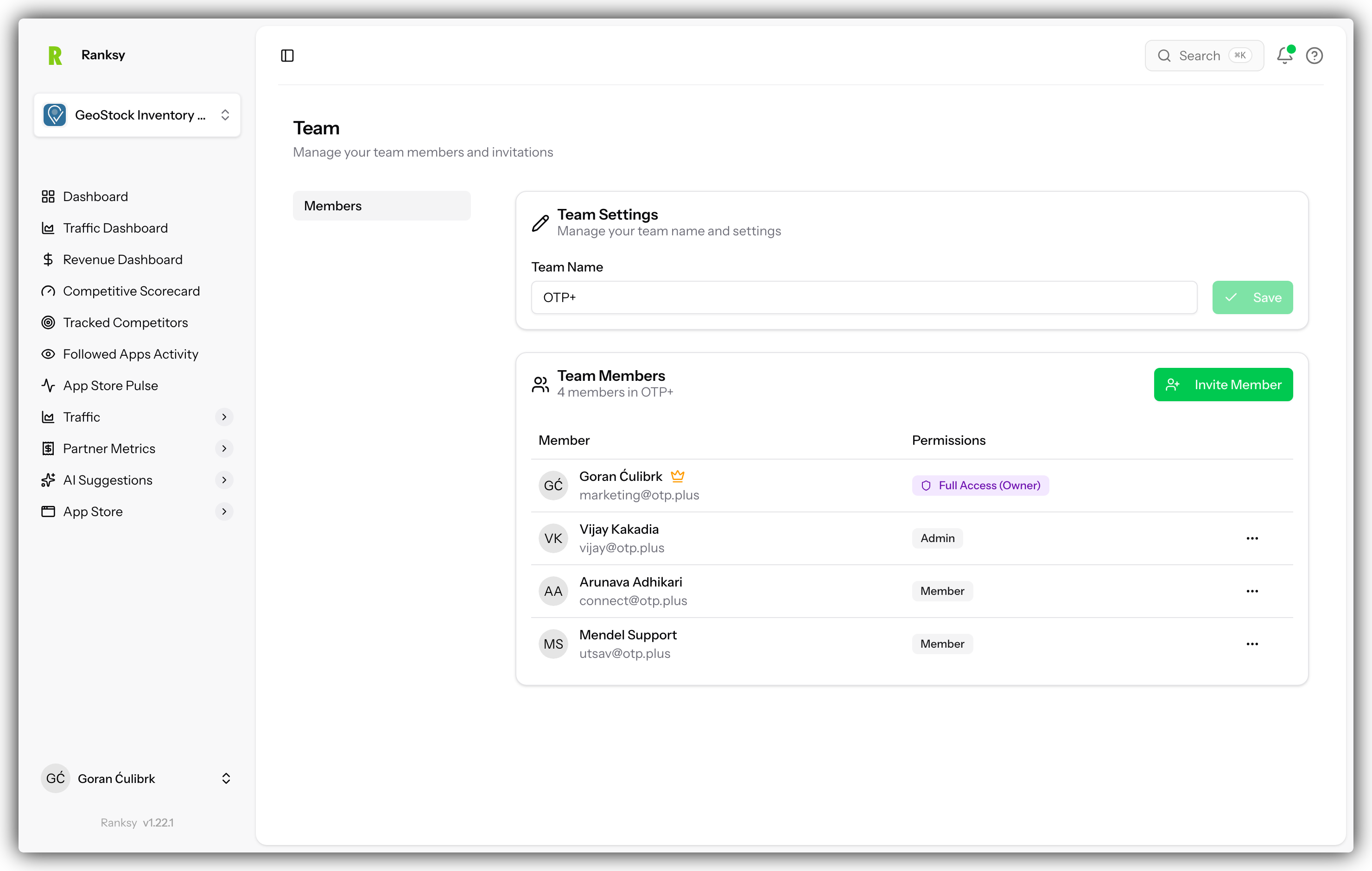
View all team members with:
| Column | Description |
|---|---|
| Name | Team member's name |
| Login email address | |
| Role | Permission level |
| Status | Active, Pending, or Disabled |
| Joined | Date they joined |
| Actions | Edit, Remove |
Your Role
Your current role is displayed at the top. Only Owners and Admins can manage team settings.
Roles and Permissions
Available Roles
Owner
- Full access to everything
- Billing and subscription management
- Can delete the account
- Can transfer ownership
- Only one owner per account
Admin
- Full access to apps and analytics
- Can invite and manage team members
- Cannot access billing
- Cannot delete account or transfer ownership
Member
- View and analyze apps
- Access all analytics features
- Cannot invite team members
- Cannot modify team settings
Viewer
- Read-only access
- View analytics and reports
- Cannot make any changes
- Cannot export data
Permission Matrix
| Feature | Owner | Admin | Member | Viewer |
|---|---|---|---|---|
| View Analytics | Yes | Yes | Yes | Yes |
| Add Apps | Yes | Yes | Yes | No |
| Connect Integrations | Yes | Yes | Yes | No |
| Export Data | Yes | Yes | Yes | No |
| Invite Members | Yes | Yes | No | No |
| Remove Members | Yes | Yes | No | No |
| Change Roles | Yes | Yes | No | No |
| Billing Access | Yes | No | No | No |
| Delete Account | Yes | No | No | No |
Inviting Team Members
Send an Invitation
- Click Invite Member button
- Enter their email address
- Select a role
- Click Send Invitation
What Happens Next
- They receive an email invitation
- They click the link to accept
- They create an account (or log in)
- They're added to your team
Invitation Status
- Pending: Invitation sent, not yet accepted
- Accepted: Team member is active
- Expired: Invitation expired (7 days)
Resending Invitations
For pending invitations:
- Find the member in the list
- Click Resend to send again
- Old invitation link is invalidated
Managing Team Members
Changing Roles
- Find the team member
- Click Edit or the role dropdown
- Select new role
- Confirm the change
Note: You cannot change your own role or give someone a higher role than yours.
Removing Members
- Find the team member
- Click Remove button
- Confirm removal
Removed members:
- Lose access immediately
- Cannot see any team data
- Can be re-invited later
Disabling Members
Instead of removing, you can disable:
- Preserves their history
- Blocks access
- Easy to re-enable later
Transferring Ownership
When to Transfer
- Leaving the company
- Changing responsibilities
- Company restructuring
How to Transfer
- Go to Team settings
- Click Transfer Ownership
- Select the new owner (must be Admin)
- Confirm with your password
- Ownership transfers immediately
Important: This action cannot be undone. You'll become an Admin after transfer.
Team Activity
Activity Log
View recent team actions:
- Member invitations
- Role changes
- Settings modifications
- Integration connections
Audit Trail
For compliance needs:
- Who made changes
- When changes were made
- What was changed
Best Practices
Role Assignment
Make someone Owner if they:
- Are the primary account holder
- Need billing access
- Should have full control
Make someone Admin if they:
- Manage the team day-to-day
- Need to invite others
- Should have most access
Make someone Member if they:
- Use Ranksy regularly
- Need to work with data
- Don't need admin functions
Make someone Viewer if they:
- Only need to see reports
- Shouldn't make changes
- Are external stakeholders
Security Tips
- Regularly audit team members
- Remove people who leave the company
- Use appropriate roles (principle of least privilege)
- Review the activity log periodically
Plan Limits
Team Size by Plan
Team member limits vary by plan:
- Starter: 1 member (owner only)
- Growth: Up to 3 members
- Pro: Up to 10 members
- Enterprise: Unlimited members
Upgrading for More Members
If you've reached your limit:
- Go to Settings > Billing
- View available plans
- Upgrade to add more members
FAQ
Q: Can I have multiple owners? A: No, only one owner per account. Use Admin role for others who need extensive access.
Q: What happens when I remove someone? A: They lose access immediately but can be re-invited later. Their past activity is preserved.
Q: Can team members see billing information? A: Only the Owner can see billing details.
Q: How do I leave a team? A: Contact the team Owner to be removed. Owners must transfer ownership first.
Q: Can I invite someone with a different email domain? A: Yes, you can invite anyone with a valid email address.
Q: Do team members count against my plan limits? A: Yes, each member counts toward your plan's member limit.
Need more team members? Check your plan limits in Settings > Billing and upgrade if needed.