Traffic Analytics
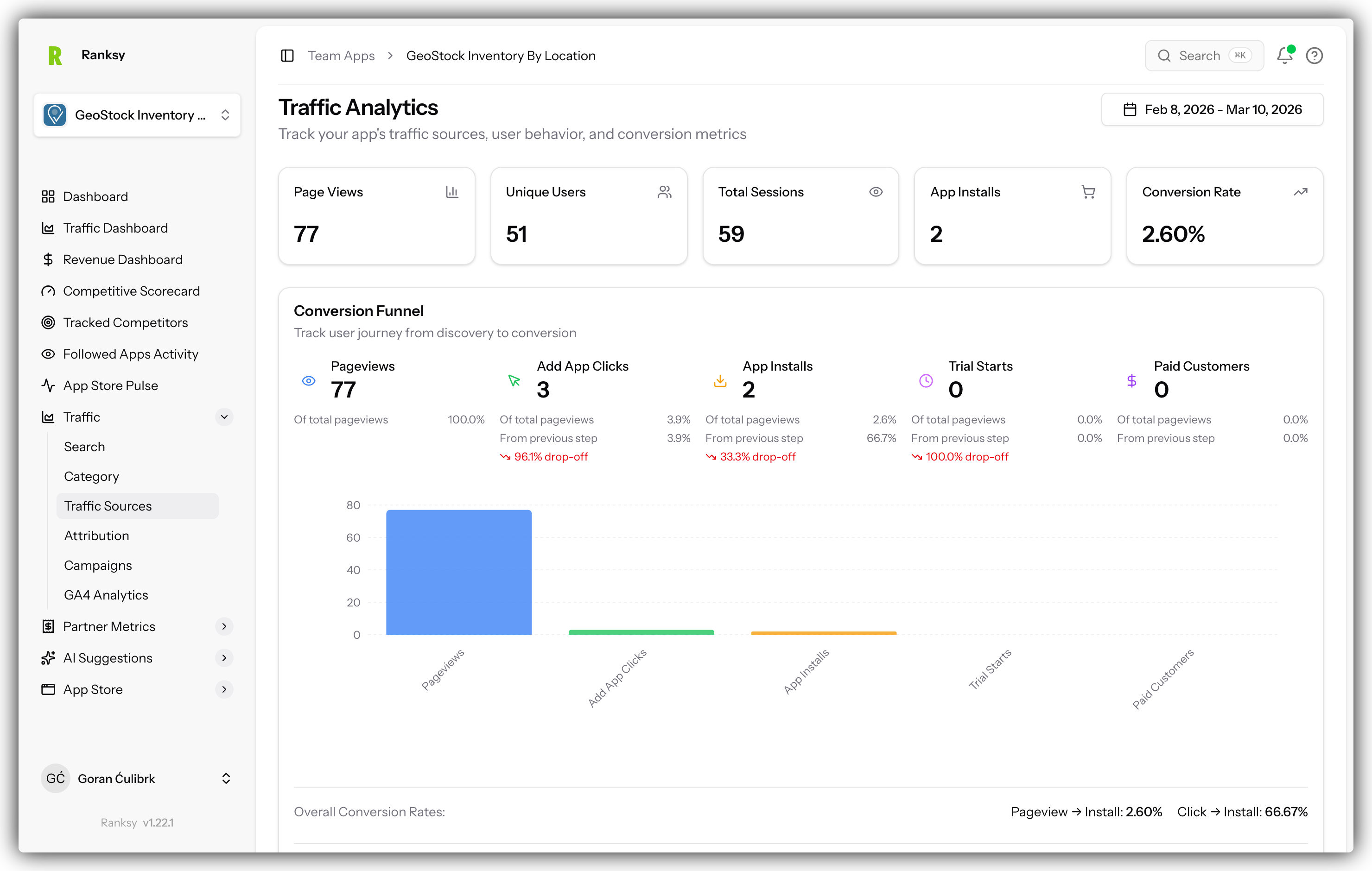
Traffic Analytics gives you direct access to your GA4 data through BigQuery, enabling powerful custom analyses beyond pre-built reports.
Prerequisites
Before using Traffic Analytics, you need:
- BigQuery Integration - Connect your GA4 BigQuery export
- GA4 Tracking - Have Google Analytics tracking your app listing
If you haven't set this up yet, see Connect BigQuery.
Accessing Traffic Analytics
- Go to My Apps and select your app
- Click Traffic in the sidebar navigation
- The SQL query interface will load with your BigQuery data
What You Can Do
Write Custom SQL Queries
The SQL editor supports:
- Full BigQuery Standard SQL syntax
- Syntax highlighting for readability
- Query validation before execution
- Configurable result limits
- Export results to CSV
Pre-built Query Templates
Get started faster with templates for common analyses:
User Journey Analysis
- Track complete paths from discovery to conversion
- Identify drop-off points
- Understand multi-touch attribution
Conversion Attribution
- First-touch and last-touch attribution
- Multi-touch attribution models
- Channel contribution analysis
Session Analysis
- Session duration patterns
- Pages per session
- Bounce rate analysis
- Engagement metrics
Event Stream Queries
- Event sequences and funnels
- Cohort analysis
- Retention queries
Using a Template
- Select a template from the library
- Customize parameters (dates, filters)
- Review the SQL query
- Click Run Query
- Save your customized version for future use
Understanding Your Data
Available Data
Your BigQuery export includes:
- Pageviews - App listing page visits
- Clicks - Button and link clicks
- Form Submissions - Trial starts, signups
- Purchases - Install completions
- Custom Events - App-specific tracking
Common Fields
| Field | Description |
|---|---|
event_date |
Date of the event |
event_name |
Type of event |
user_pseudo_id |
Anonymous user ID |
event_params |
Event details (array) |
geo |
Geographic data |
device |
Device information |
traffic_source |
Referral data |
Best Practices
Query Optimization Tips
Do:
- Start with small date ranges to test queries
- Use specific columns instead of
SELECT * - Filter by date partitions
- Use LIMIT while testing
- Check query cost estimation before running
Avoid:
- Querying entire datasets without filters
- Full table scans
- Nested subqueries when unnecessary
- Running expensive queries repeatedly
Cost Management
BigQuery pricing:
- First 1 TB/month is free
- $5 per TB after that
- Typical monthly cost: $5-20
The query cost is shown before execution so you can avoid surprises.
Common Use Cases
Find Your Best Traffic Sources
Identify which sources drive the most conversions:
SELECT
  traffic_source.source,
  COUNT(*) as sessions,
  COUNTIF(event_name = 'install') as installs
FROM `your_table`
WHERE event_date BETWEEN 'YYYY-MM-DD' AND 'YYYY-MM-DD'
GROUP BY 1
ORDER BY installs DESC
Analyze User Paths
See how users navigate to installation:
-- Track the sequence of events leading to install
SELECT user_pseudo_id, event_name, event_timestamp
FROM `your_table`
WHERE user_pseudo_id IN (
  SELECT DISTINCT user_pseudo_id
  FROM `your_table`
  WHERE event_name = 'install'
)
ORDER BY user_pseudo_id, event_timestamp
Geographic Performance
Compare conversion rates by country:
SELECT
  geo.country,
  COUNT(DISTINCT user_pseudo_id) as users,
  COUNTIF(event_name = 'install') as installs,
  SAFE_DIVIDE(COUNTIF(event_name = 'install'), COUNT(DISTINCT user_pseudo_id)) as conversion_rate
FROM `your_table`
GROUP BY 1
ORDER BY installs DESC
LIMIT 20
Saving Queries
Save frequently used queries for quick access:
- Write or modify a query
- Click Save Query
- Give it a descriptive name
- Access saved queries from your library
Troubleshooting
"Permission Denied" Error
- Verify your BigQuery connection in Settings
- Check that OAuth permissions are still valid
- Try re-authorizing your Google account
"Query Timeout" Error
- Reduce your date range
- Add more filters to limit data
- Simplify complex queries
- Try sampling larger datasets
No Results Returned
- Check that your date range has data
- Verify event names match exactly
- Confirm filters aren't too restrictive
- Check if data has synced for that period
Query Cost Too High
- Add date filters to limit data scanned
- Use specific columns instead of
SELECT * - Consider aggregating data first
- Use query dry-run to estimate costs
FAQ
Q: How real-time is the data?
A: GA4 exports to BigQuery daily. For same-day data, check the events_intraday_* tables.
Q: Can I connect multiple BigQuery projects? A: Currently, one BigQuery connection per app. Contact support for enterprise options.
Q: Why is my query slow? A: Large date ranges and full table scans are the most common causes. Always filter by date first.
Q: Can I schedule recurring queries? A: Not currently in Ranksy. Use BigQuery scheduled queries directly for automated reports.
Need help with SQL? Check out BigQuery SQL Reference or contact [email protected].