Invite and Approve Affiliates
You can add affiliates to a program in three ways: enroll them by email, share the program's signup page, or import a list from a CSV file. You need at least one program first. See Set Up an Affiliate Program.
Enroll an affiliate by email
- Go to Affiliates.
- Click Enroll affiliate.
- Choose the Program.
- Enter the affiliate's Email and, if you like, their Name.
- Click Enroll.
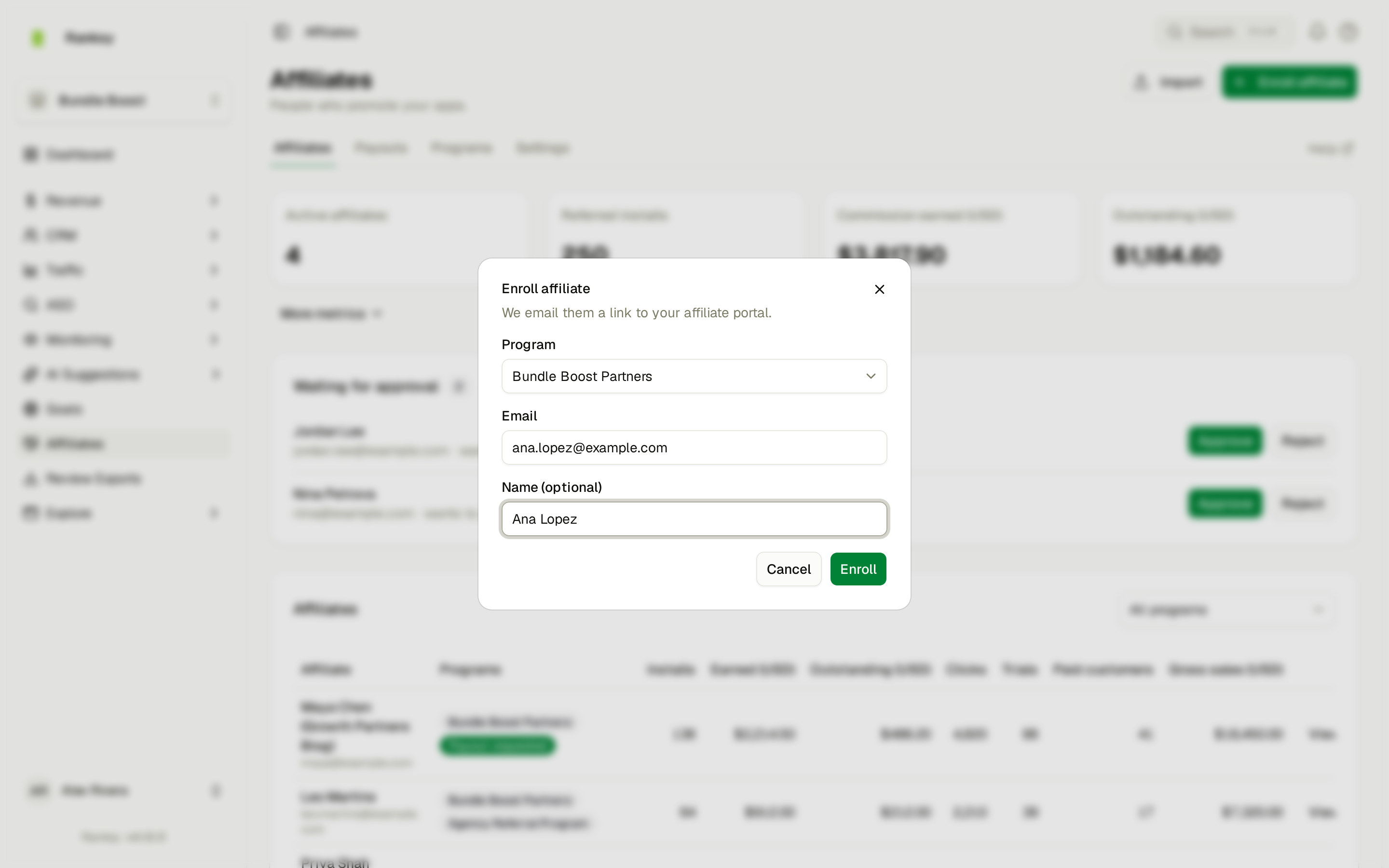
Ranksy emails the affiliate a link to the affiliate portal. They see their referral links there once they sign in with that email address.
The quickest way in for them is Continue with Google with the same address. If they'd rather use a password, send them the program's signup link too. They can create an account there with the same email.
If the program requires approval, the person you enroll still waits as pending until you approve them.
Share the signup page
- Open the program and go to the Signup page tab.
- Copy the Signup link.
- Share it wherever you recruit affiliates: your website, a newsletter, a partner email.
People who open the link see the program name and its apps. They sign up with Google or with an email and password, and confirm their email.
What happens next depends on the program's Approve affiliates before they join setting:
- Off: they join right away and get their referral links. Ranksy emails them a welcome.
- On: they wait as pending until you decide. Ranksy emails them that their application was received.
Either way, the team owner gets a notification.
Import affiliates from a CSV file
Moving from another affiliate tool? Click Import on the Affiliates page.
- Choose the Program.
- Under What are you importing?, choose Affiliates, Referrals or Opening balances.
- Click Download the template and fill it in. A file can have up to 5,000 rows and be up to 2 MB.
- Upload the file and click Check file.
- Check the preview, then confirm.
The whole file is imported or none of it, so every row must pass the check first.
| Import | Columns |
|---|---|
| Affiliates | email, name, group (optional) |
| Referrals | shop_domain, affiliate_email, app_handle (optional if the program has one app), count_commissions_from (optional, YYYY-MM-DD) |
| Opening balances | affiliate_email, amount, note (optional), reference |
Imported affiliates join without approval. Ranksy doesn't email them unless you turn on Send invite emails. Opening balances need the Affiliate payouts permission.
Program terms
If the program has Affiliates must accept your terms on, affiliates must accept the terms before they see their referral links. People who sign up accept them on the signup page. People you enroll or import accept them in the portal the first time they open the program.
If you change the terms link, everyone must accept the new version before their links show again.
The Programs section of an affiliate's page shows where they stand: Terms accepted, Accepted an older version of the terms, Terms not accepted or No terms required.
Approve or reject a request
Pending requests appear at the top of the Affiliates page under Waiting for approval. Each row shows the person, the program, and when they asked. The Programs tab also shows how many people are waiting in each program.
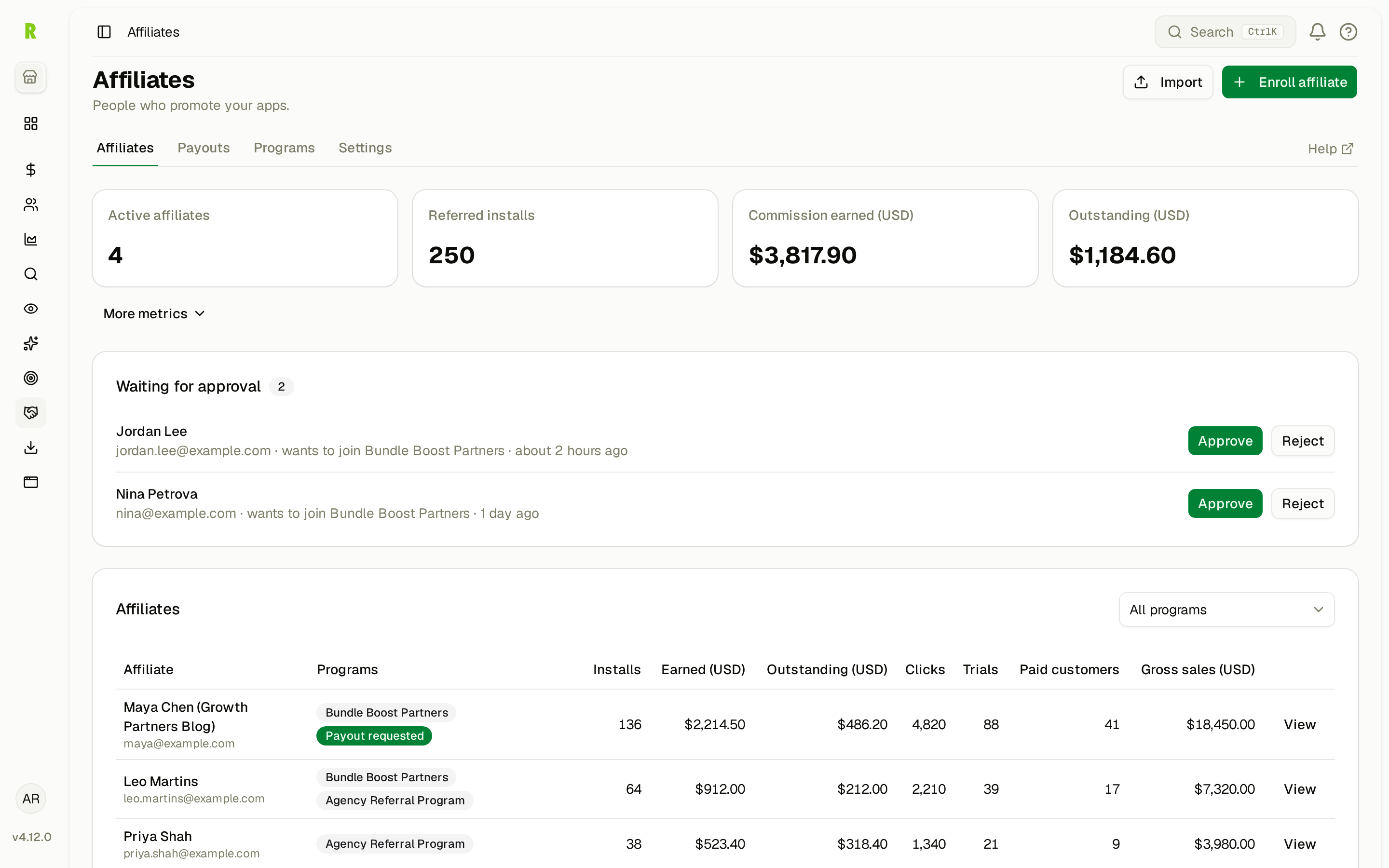
- Click Approve to let them in. Ranksy emails them, and their referral links start working.
- Click Reject, then confirm. Ranksy emails them to say they weren't accepted.
Ranksy credits referrals only to approved affiliates. Approve requests soon, so installs from their links aren't missed.
Add a referral or a commission by hand
Each affiliate's page has a Manual entries card:
- Add referral credits the affiliate for a shop that installed without their link. Choose the App and enter the Shop domain. A shop can only be referred once.
- Change start date sets the date from which this affiliate's referrals earn. Payments before it earn nothing.
- Add commission credits an amount no customer payment earned, with a note your team can see. It needs the Affiliate payouts permission.
A manual referral earns on payments from today, unless you set Count commissions from. A past date adds commission for past payments within about an hour, and needs the Affiliate payouts permission.
Track your affiliates
The Affiliates page lists everyone with their programs, installs, earnings, outstanding balance, clicks, trials, paid customers and gross sales. Click View to open an affiliate's page. It shows:
- Payout details: how they want to be paid
- Manual entries: the start date and the buttons above
- Referral progress: the latest 50 referred installs and how far each merchant got (trial, paid)
- Programs: each program they're in, their status and their terms
- Links: clicks, installs, trials, paid customers and commission for each app link, with a Copy button
- Commissions: each commission and its status
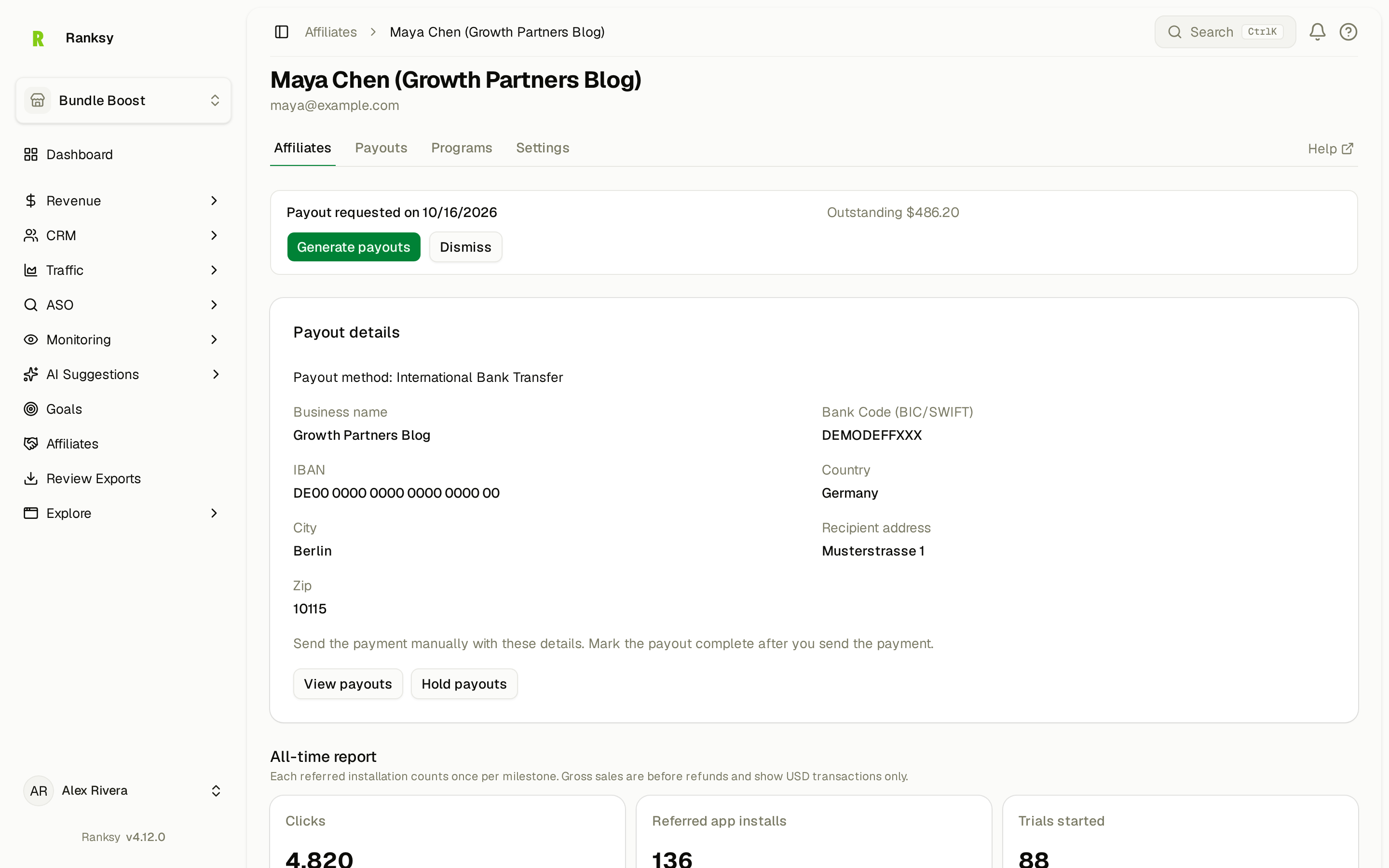
Payouts are on the Payouts tab. See Pay Affiliates.
If you run two or more programs, use the program filter to see one program at a time.
FAQ
Q: Can one person join several of my programs? A: Yes. They get links for each program they join. The Affiliates page shows each of their programs.
Q: Can an affiliate work with other teams too? A: Yes. Affiliates can join programs from more than one Ranksy team. Each team sees only its own programs, referrals and balance.
Q: Can an affiliate refer their own store? A: No. Ranksy doesn't credit a shop whose owner email matches the affiliate's email or payout email, or anyone on your team.
Q: What happens if an affiliate deletes their account? A: Their name shows as "Deleted affiliate", their links stop working, and commission that wasn't in a payout yet is cancelled. Your records of what you paid stay. An affiliate can't delete their account while they have a pending payout, an open payout request, or a hold with money outstanding.
Need help? Contact support@ranksyapp.com or use the chat widget.