Pay Affiliates
Ranksy works out what each affiliate earned and keeps the payment record. It doesn't send money. You pay each affiliate yourself by PayPal or bank transfer, then mark the payout paid in Ranksy.
Paying affiliates needs the Affiliate payouts permission. Members without it don't see the Payouts tab, and they see bank details masked.
Set payout methods
- Go to Affiliates > Settings.
- Under Payout methods, check PayPal, International bank transfer, or both.
- Click Save.
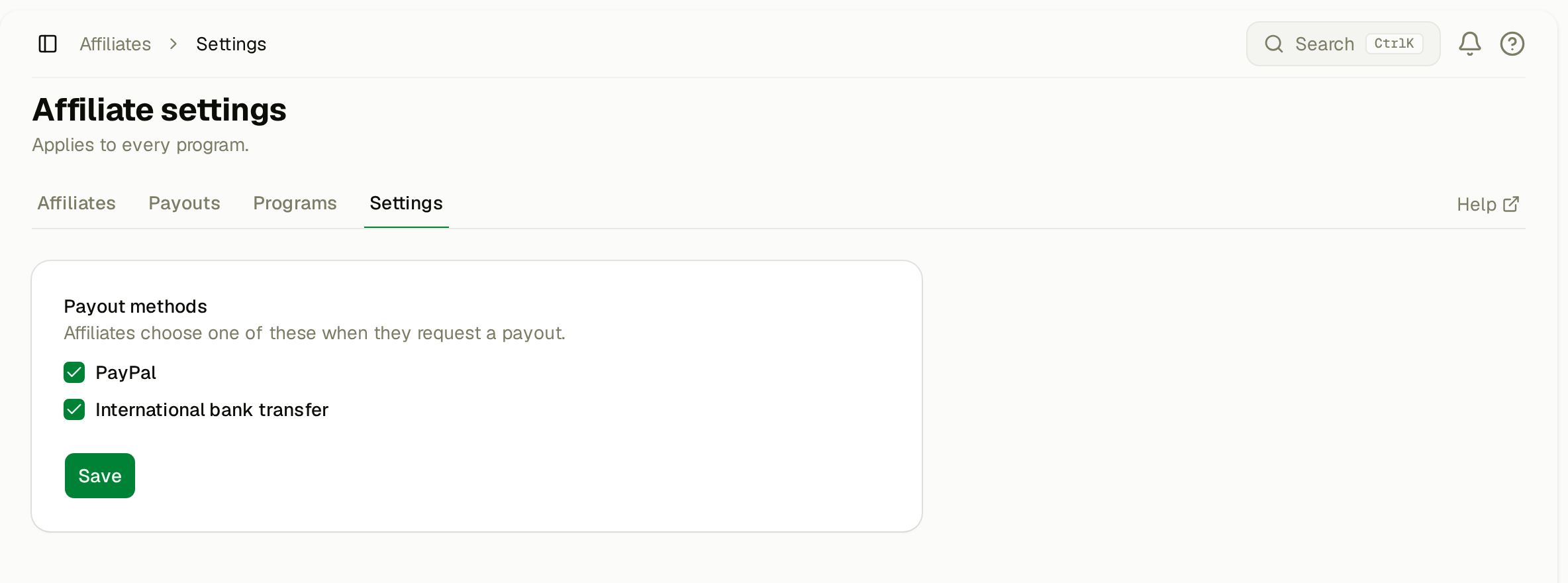
These methods apply to every program. Affiliates choose one of them in their portal and add their payment details there.
If you turn off a method an affiliate already uses, they must choose an allowed method before they can request a payout.
Set a minimum payout
Each program has a Minimum payout on its General tab. Ranksy starts a payout only when an affiliate's unpaid commission in that program reaches this amount. Until then, the commission stays outstanding. Affiliates can't request a payout below the minimum either.
How commission becomes a payout
- A referred merchant installs or pays. Ranksy records a commission under the program's rules.
- Once the affiliate's unpaid commission in a program reaches the minimum, Ranksy groups it into a pending payout. New commission joins the same pending payout until you pay it.
- You pay the affiliate and mark the payout paid. Its status changes to completed.
Ranksy does this on its own. Each program gets its own payout, and amounts are in USD.
The Payouts tab
Go to Affiliates > Payouts. Pending payouts are at the top, then the newest. Each row shows the payout number, the affiliate and program, the status, the amount, what you paid, and where to send the money.
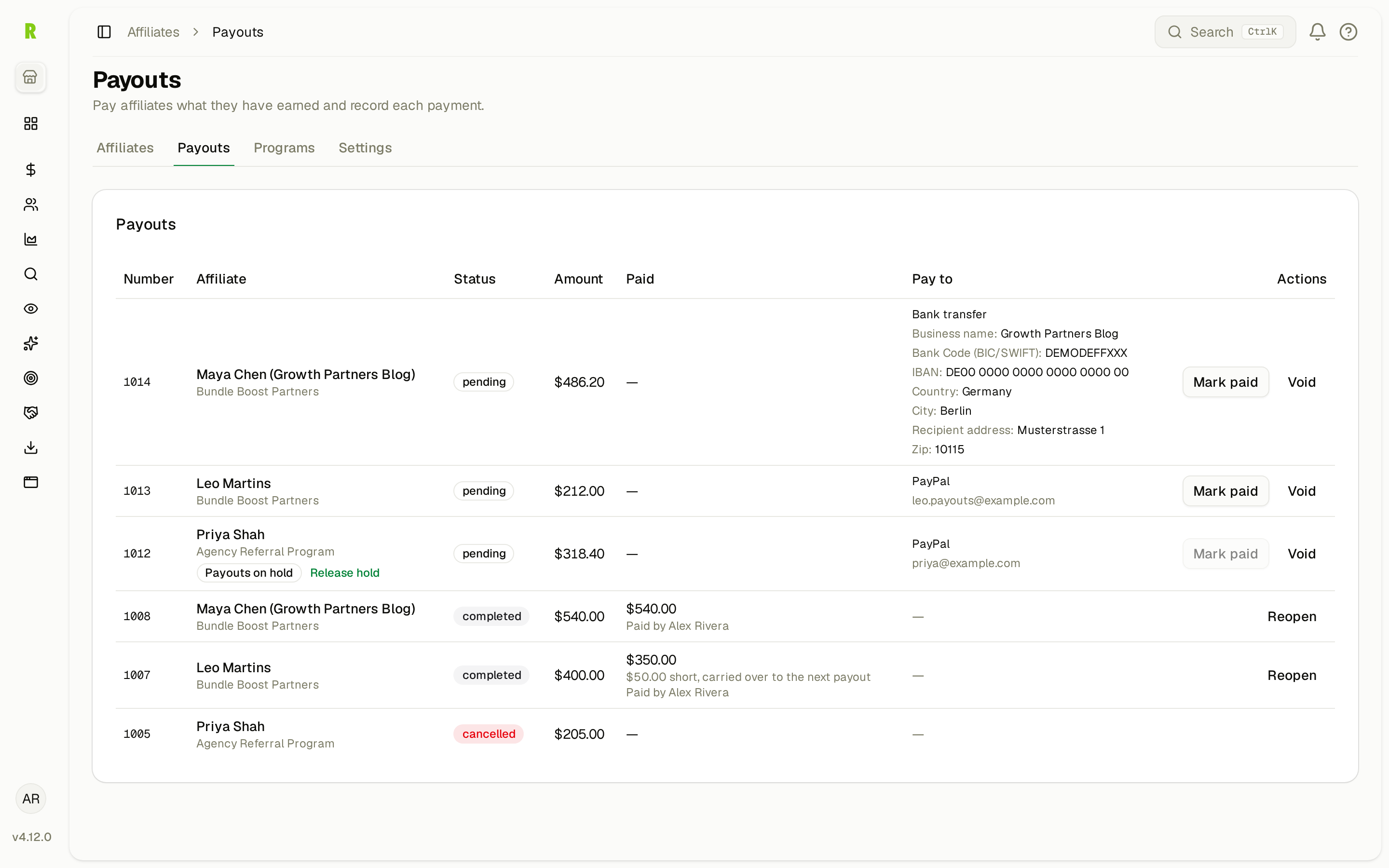
To see one affiliate's payouts, open their page and click View payouts.
Handle a payout request
Affiliates can ask to be paid from their portal. A request asks you to review. It doesn't move money.
An affiliate can send a request only when:
- their unpaid commission has reached the program's minimum payout
- their payout details are complete for your team
- their payouts aren't on hold
When a request comes in, the team owner gets an email, and the affiliate's row on the Affiliates page shows Payout requested. On the affiliate's page:
- Click Generate payouts to group their unpaid commission into pending payouts. Once a pending payout exists, the request closes.
- Click Dismiss to close the request without a payout.
You don't have to wait for a request. You can pay any pending payout at any time.
Pay and mark a payout paid
Watch the walkthrough (56 seconds):
- Open Affiliates > Payouts.
- Check Pay to for the payout method and the PayPal email or bank details.
- Send the payment yourself through PayPal or your bank.
- Click Mark paid on the pending payout.
- Check Amount paid (it starts at the payout amount) and add a Payment reference, such as the PayPal transaction ID.
- Click Mark paid.
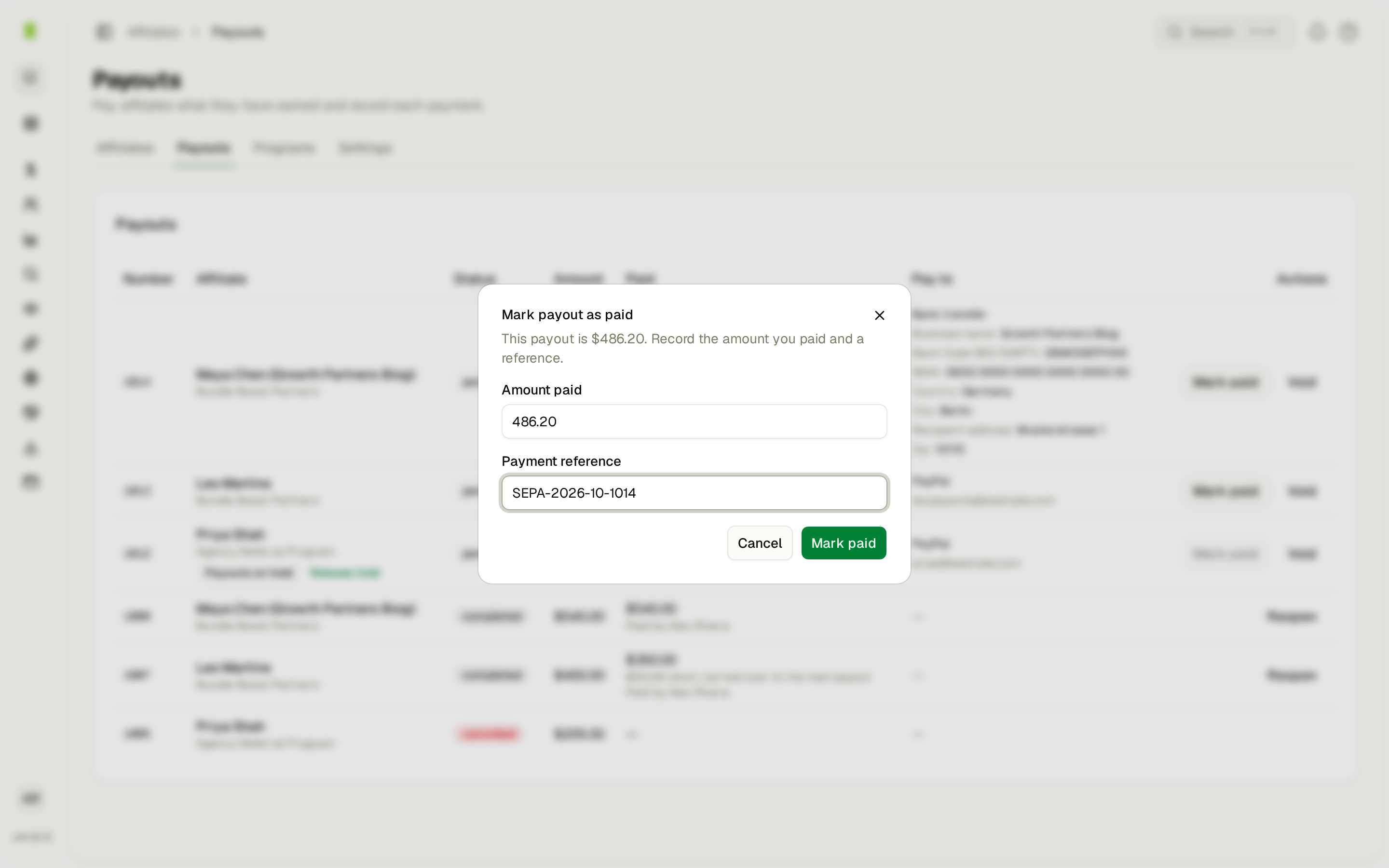
Ranksy emails the affiliate to say the payout was sent, with the amount and the reference.
Paying less than the full amount. Enter what you paid in Amount paid and check Pay the rest later. The unpaid part stays in the affiliate's balance and goes into their next payout. You can't enter more than the payout amount.
Check before you pay. If an affiliate changed their payout details in the last 14 days, Ranksy warns you on the payout and on their page. Confirm the change with the affiliate through a channel you already use before you send money. Scammers change payout details to redirect payments. If the details are incomplete, ask the affiliate to update their profile in the portal first.
A paid payout is final
Once you mark a payout paid, it stays paid:
- If a referred merchant later gets a refund, Ranksy doesn't take back the commission in that payout.
- Ranksy doesn't deduct it from the affiliate's future payouts either.
- A paid commission can't be cancelled.
Marked paid by mistake? Click Reopen on the payout. Reopening sets it back to pending and clears the amount paid and the reference. Use it only to fix a mistake, not to recover money for a refund.
Hold an affiliate's payouts
Hold payouts while you look into something, such as suspicious referrals or a payout detail change you haven't confirmed.
- Open the affiliate's page.
- Click Hold payouts.
- Enter a Reason your team can see, and click Hold payouts.
While payouts are on hold, commission keeps adding up, but Ranksy creates no payout and you can't mark one paid. The affiliate sees that their payouts are on hold and can't send a payout request. They don't see your reason.
To end the hold, click Release hold on the affiliate's page or on the Payouts tab. Ranksy then creates any payouts that are due.
Void a payout
Void a pending payout when it shouldn't be paid as it is, for example to remove a commission from it.
- On the Payouts tab, click Void on the pending payout.
- Enter a Reason and click Void payout.
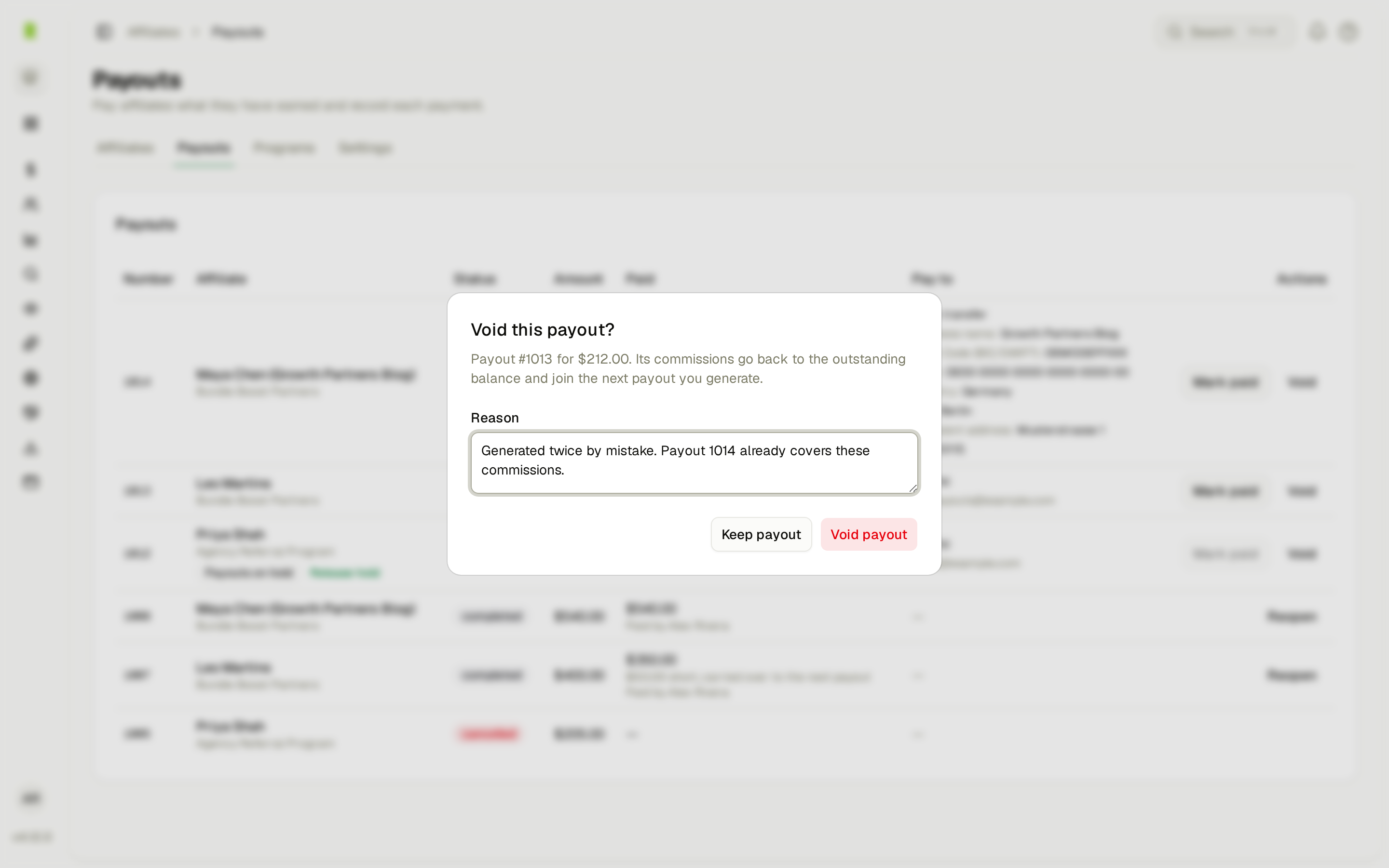
The payout's status changes to cancelled. Its commissions go back to the outstanding balance and join the next payout. Only pending payouts can be voided.
Cancel a commission
You can cancel a commission that isn't part of a payout, for example after a refund before you paid, or a fraudulent signup. On the affiliate's page, find it under Commissions, click Cancel, then confirm. A cancelled commission is never paid out, and you can't undo it.
If the commission is in a pending payout, void that payout first.
Add a commission or an opening balance
With the Affiliate payouts permission you can credit money no customer payment earned:
- Add commission on the affiliate's page, under Manual entries. Enter the amount and a note your team can see.
- Opening balances from a CSV file, to bring balances over from another tool. Click Import on the Affiliates page.
Both count toward the affiliate's balance and join their next payout.
Statuses
| Payout status | Meaning |
|---|---|
| pending | Waiting for you to pay |
| completed | You marked it paid |
| cancelled | You voided it. Its commissions went back to the balance |
| Commission status | Meaning |
|---|---|
| outstanding | Earned, not yet in a payout |
| pending | In a payout you haven't paid yet |
| paid | In a payout you marked paid |
| cancelled | Cancelled. It will never be paid |
If the program is paused
If the affiliate program is paused for your team, the Payouts page stays open in the sidebar. You can still mark payouts paid, void, reopen, hold and release, so you can pay what affiliates have already earned.
FAQ
Q: Can Ranksy pay affiliates for me? A: No. Ranksy never holds or sends money. It keeps the record of what was earned and paid.
Q: Is there a waiting period before commission can be paid? A: No. Commission can go into a payout as soon as it's recorded and the program's minimum is met. If you want to wait, set a higher minimum payout or hold the affiliate's payouts.
Q: Where do affiliates see their payouts? A: On the Payouts page of the affiliate portal. See The Affiliate Portal.
Need help? Contact support@ranksyapp.com or use the chat widget.